Freeze Frame Video from One Photo: Sidewalk Collision Guide
Upload one portrait to ZOOOP and create a 12-second street fashion video with suspended sunglasses and splashing coffee. Learn which photo to use and how to generate and download your clip.
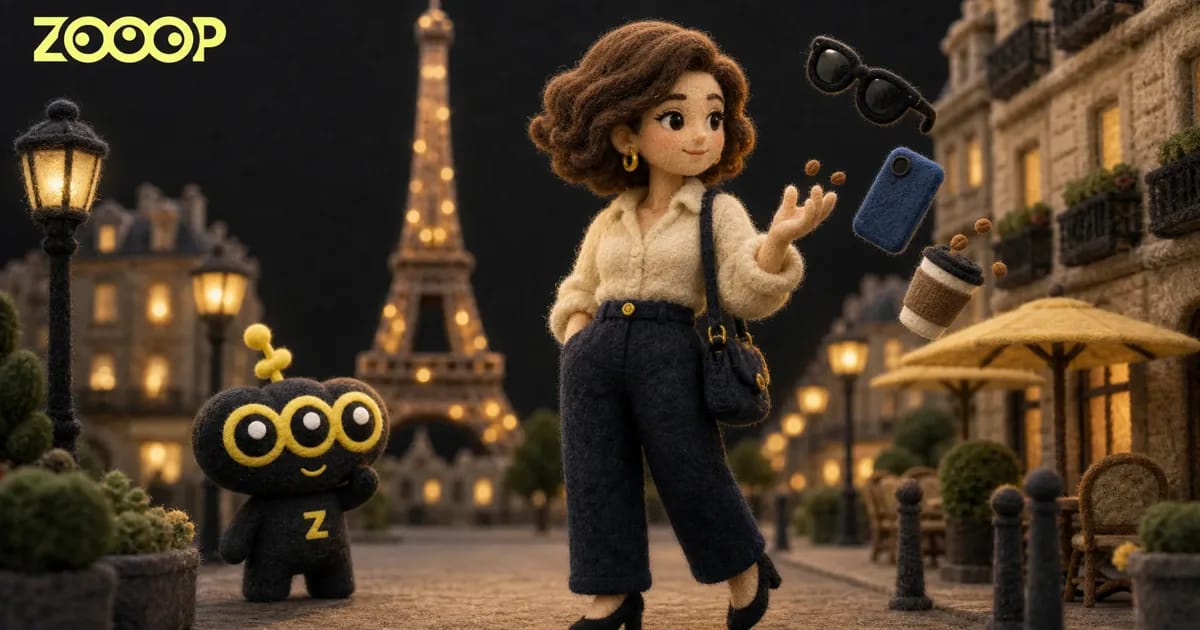
A pair of sunglasses flies toward the camera. Coffee rises from a paper cup in a curved splash. A brief interruption on a city sidewalk becomes a series of close-ups before the camera returns to the person at the center of it all.
You can make this freeze frame video with one portrait using ZOOOP’s Sidewalk Collision template. Your photo becomes the main character in a 12-second vertical clip, available at 480p or 720p. There is no walking footage to film first and no sequence of individual objects to arrange yourself.
What happens in the video
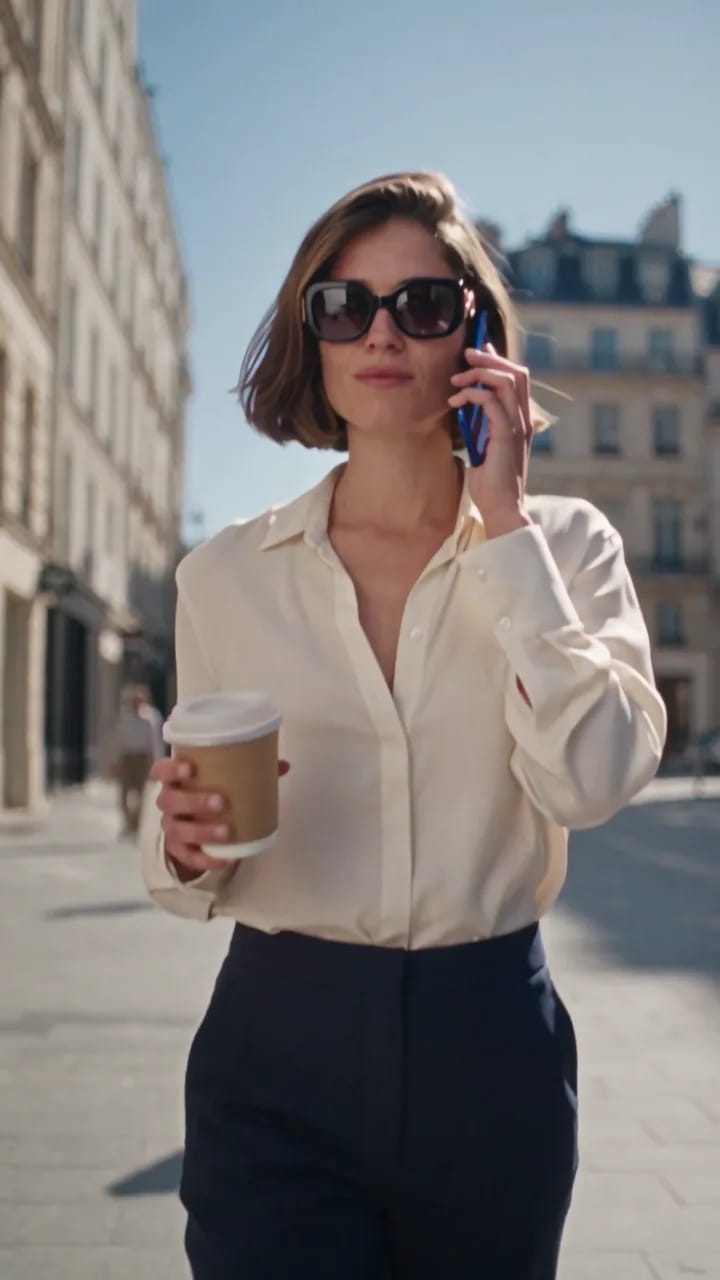
The character walks along a city street, holding a coffee and talking on a phone. A sudden collision interrupts the walk. Sunglasses and splashing coffee take turns filling the foreground, and the sequence ends with a full-body view and objects on the pavement.
This freeze frame video has a simple progression: meet the character, interrupt the action, then move closer to the details. The result goes beyond holding one still image on screen. The accessories appear suspended near the camera while the character and street remain behind them, creating a fashion-film feel through changes in distance and framing.
Choose a portrait with a clear face
Upload exactly one photo of one adult. A front-facing or slightly angled portrait with even lighting works well. Keep the eyes, nose and mouth visible, without sunglasses, a phone or a hand covering the face. Hair should leave enough of the face unobstructed to recognize the person.
A single-subject portrait is easier to work with than a group photo or a distant figure. Heavy filters can also change the features you want to bring into the clip. You do not need to pose with a coffee cup or wear the outfit shown in the example.
Your photo supplies the face and hairstyle for the freeze frame video. The character wears a cream blouse and navy tailored trousers. The street and accessories belong to the template’s scene; this is not a way to reproduce every garment or object in your uploaded photo.
Upload, generate and download in ZOOOP
Open the template page and upload your portrait in the photo input. This is a required step: the picture supplies the character’s identity, rather than serving only as a cover image. You do not need to upload a street video or separate pictures of sunglasses and a phone.
Choose your resolution next. Select 480p for a casual sharing clip, or 720p when you want more detail in the exported image. Both options use the same 12-second, vertical 9:16 format.
Generate your freeze frame video, then download it when it is ready. For another visual style, browse the template library. If you would rather describe a scene yourself, use the AI Video Generator.
What the accessory close-ups look like
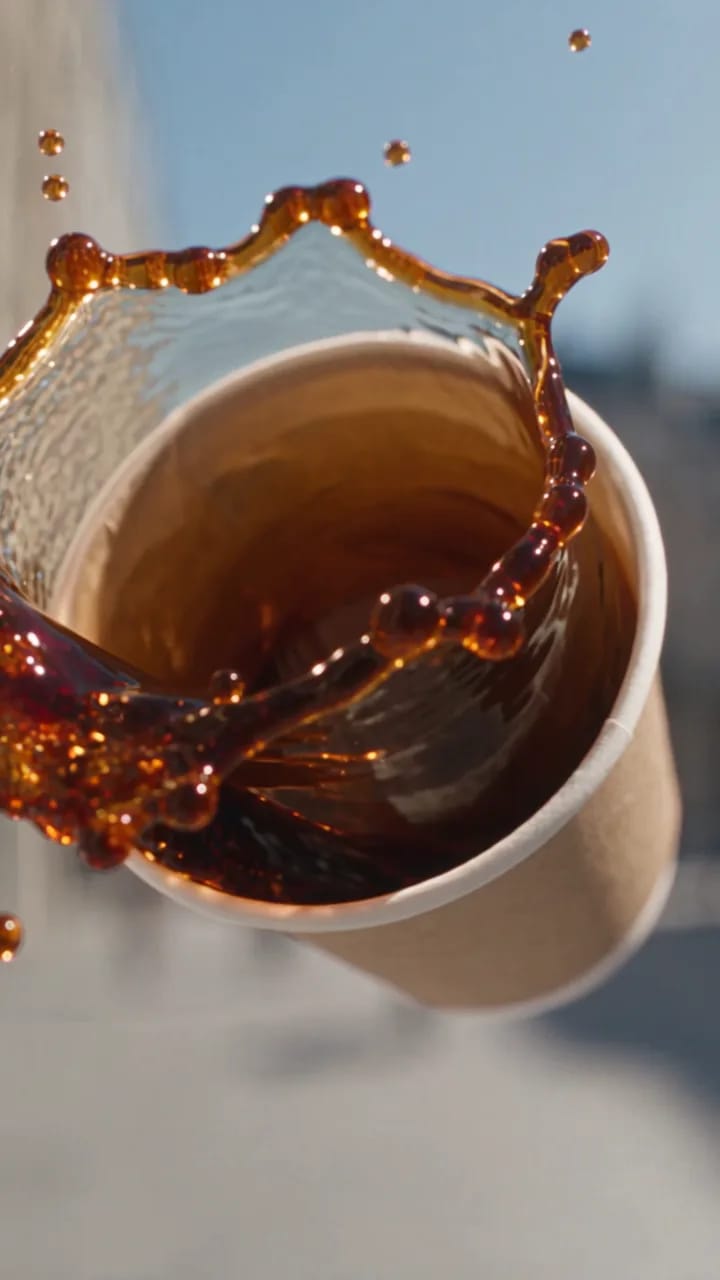
The sunglasses move close to the lens first. The coffee cup follows, with liquid and scattered droplets forming a visible arc. The camera then returns to the character’s face and full-body view. The rhythm comes from these shifts between the person and the objects.
The example uses dark sunglasses and a blue phone. Frame decorations, phone shapes and the placement of objects on the ground can vary between generations. Treat the freeze frame video as a stylized fashion scene rather than an accurate demonstration of a particular product’s construction or design.
Where to use the clip
Use it as a personal fashion post, a street-style short or an introduction to a set of portraits. A walk, an interruption and a few close-ups give the short clip a complete scene.
For an outfit-photo sequence, place the video first to introduce the character and mood, then follow it with still images. It also works as a standalone post. Since the clothing follows the template’s fixed style, it is better suited to setting a mood than showing the exact fit of clothes in your photo.
To create your own freeze frame video, prepare a clear portrait, open Sidewalk Collision, upload your photo and generate the clip for download.
Frequently asked questions
How many photos do I need?
Upload one clear photo of one adult. Avoid group photos; no additional video footage is required.
Will the character wear my own clothes?
The photo supplies the face and hairstyle. The character wears a cream blouse and navy tailored trousers rather than reproducing each garment in your picture.
Can I choose a specific phone or pair of sunglasses?
The template does not offer separate controls for these accessories. The displayed effect uses dark sunglasses and a blue phone, with shapes and details that can vary between generations.
Can I make a longer or horizontal clip?
This template produces a 12-second, vertical 9:16 video at 480p or 720p. Download the video once generation is complete.