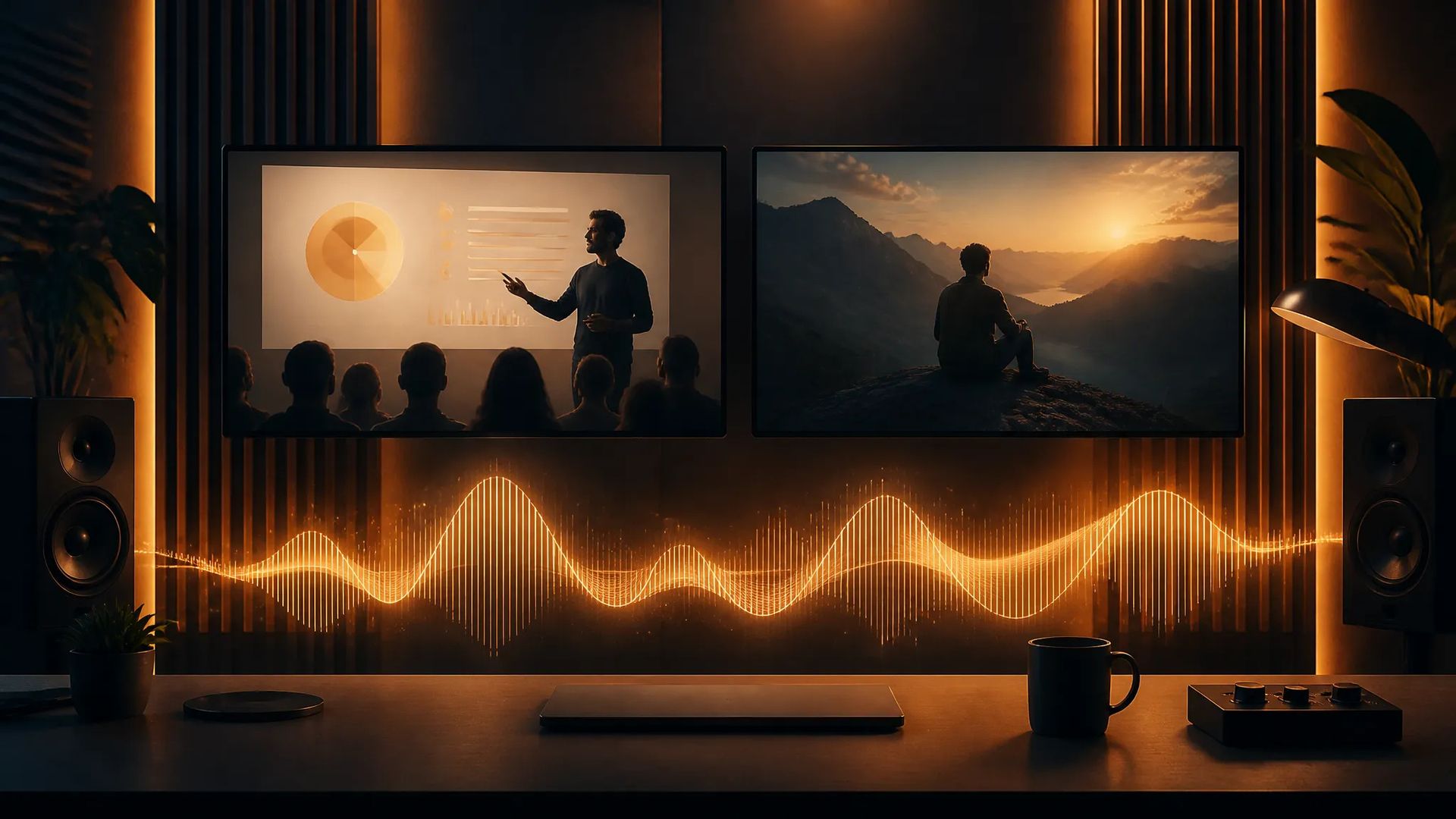
Video background music
Score a piece to its actual mood instead of digging through a stock library and then checking the license.
Describe a style and mood and get a track — some models will even sing your own lyrics. The output drops straight into your video.
Name the genre, mood, instruments, and tempo and the model arranges a finished track — no music theory, no instrument required.
Paste lyrics in and the model sets them to a melody. Want instrumental only? There are models built specifically for that.
Some handle full song structure, some suit loopable background beds, some are cheap enough to explore freely. Re-run one description across them.
Download the audio directly or send it to the canvas to line up against picture — no trip through a DAW first.
Score a piece to its actual mood instead of digging through a stock library and then checking the license.
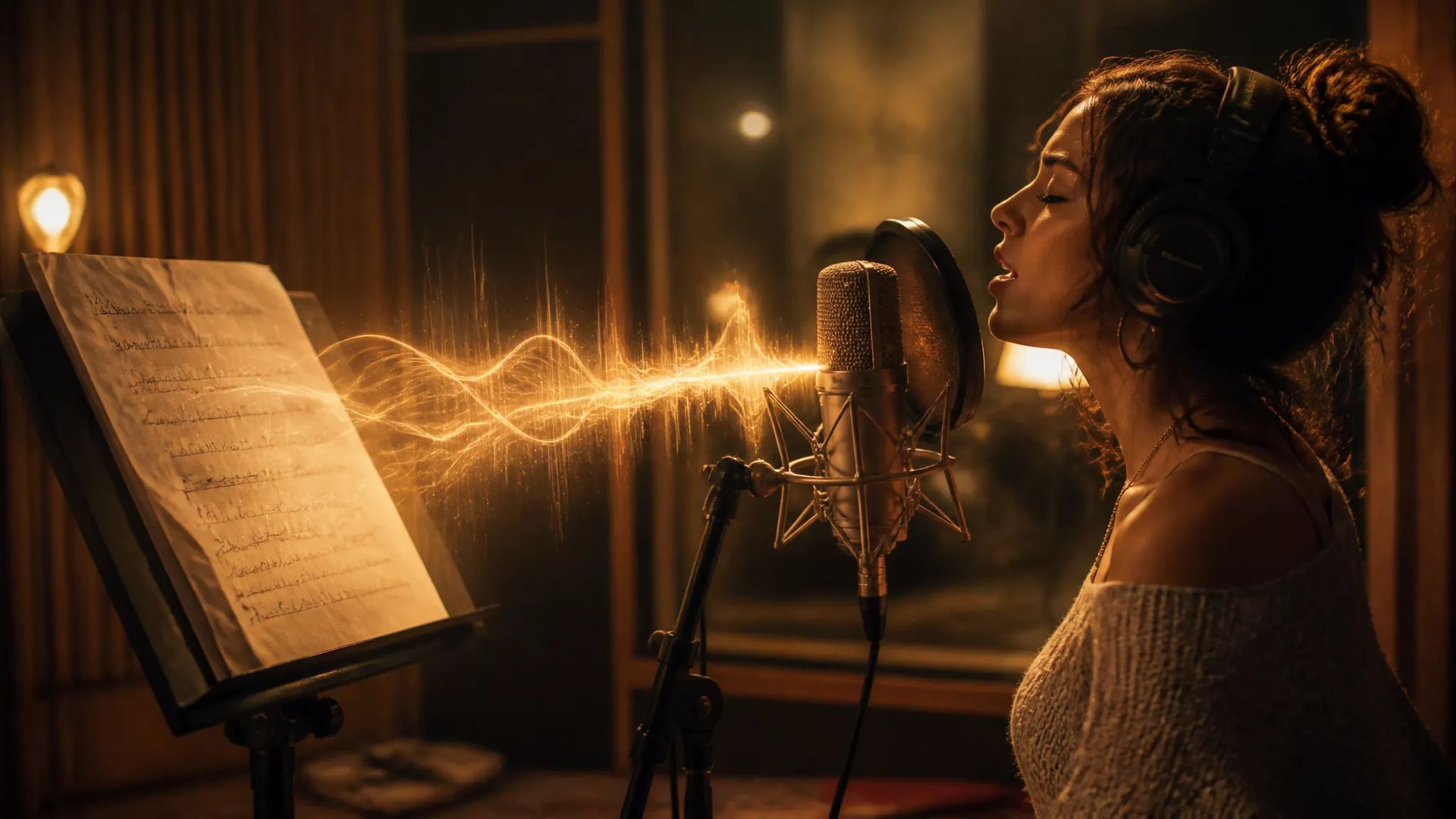
Hand the model lyrics you wrote and have them sung — for demos, short-film themes, or just because.
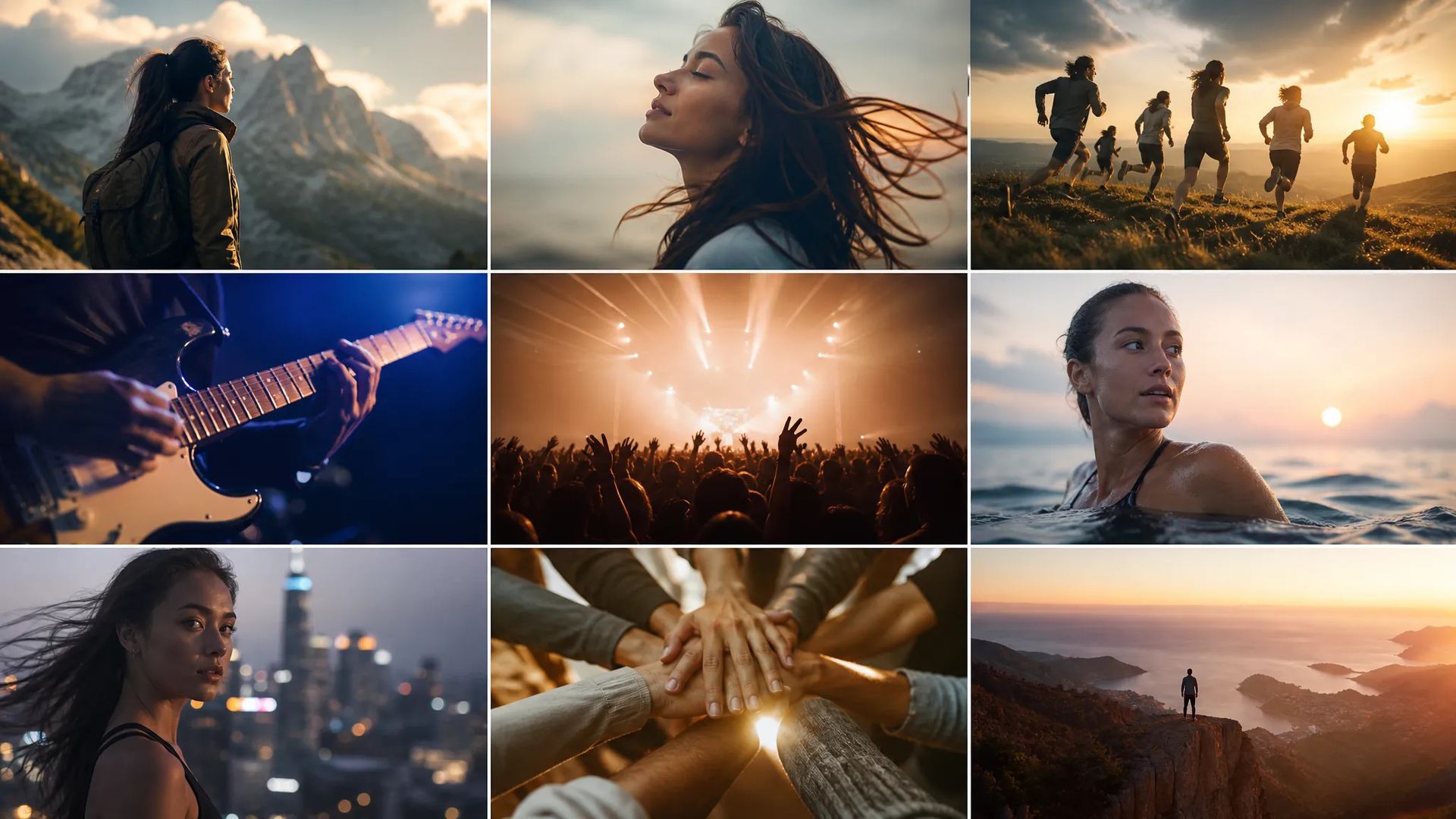
Short, catchy, loopable pieces for ad tags and product videos.
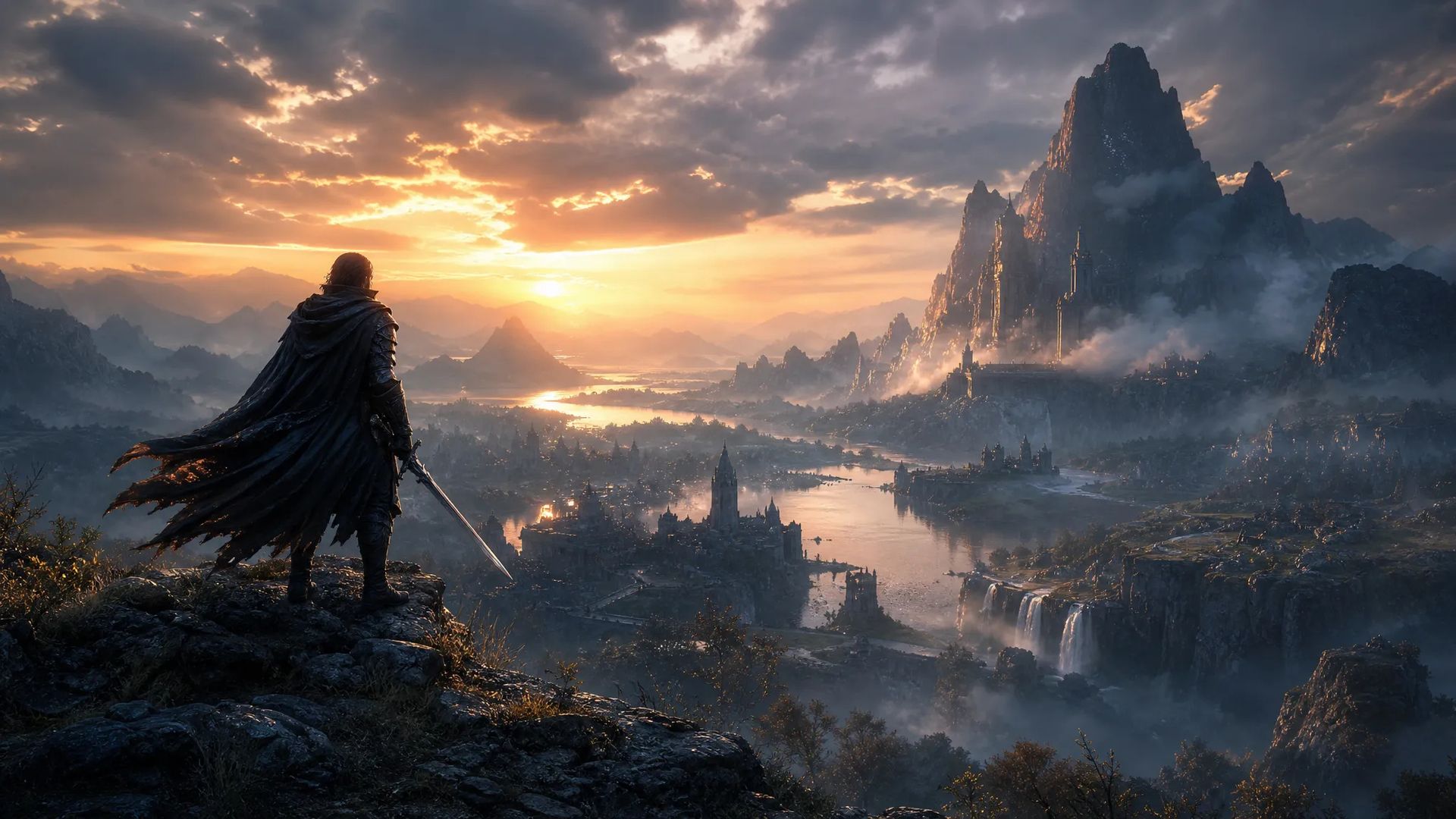
Ambient scene beds and rising emotional passages, laid down early to test the overall feel.
Open the AI Music Generator, pick a model, and describe the style and mood you want.
Paste lyrics for vocals, or leave the field empty for instrumental.
Preview and download, or send it to the canvas to line up against video.
Scoring a video used to offer two options: dig through a stock library and then verify the license range, or commission a composer at a cost and timeline short-form content can't absorb.
AI music generation adds a third: describe the style and mood you want and the model arranges something. Not right? Change the description and go again. The cost is one generation.
This page runs several music models with genuinely different strengths — some handle full song structure (intro, verse, chorus), some are better at loopable background beds, some are cheap enough to explore freely. Re-running one description across a couple of them is usually faster than rewriting the prompt on the wrong model.
Music prompting resembles image prompting: the more specific, the higher the hit rate.
Write in this order — genre + mood + instruments + intended use. "Upbeat solo piano for a product demo background" is far more useful than "nice music." Tempo, presence of drums, vocals or not, roughly where it'll be used: each one pulls the result closer.
For vocals, the models that support it take lyrics directly and sing them to a melody. For instrumental beds, leave the lyrics empty or pick a model built for instrumental.
This page makes music with melody. A few jobs don't belong here:
Music usually goes on last, but it's worth trying early — score changes how a cut feels, so hearing it sooner affects how you edit.
A practical approach: once you have a rough cut, generate two or three different styles from one-line descriptions, drop them on the canvas, and listen against the picture. Pick a direction, then refine. That beats agonizing over whether the prompt is worded precisely enough.
"Genre + mood + instruments + intended use" beats piling on adjectives. "Upbeat solo piano for a product demo background" is far more consistent than "nice music." Tempo, whether there are drums, whether you want vocals — spell those out; the model can't guess the track in your head.
On the models that support it, yes — paste them into the lyrics field and the model sets them to a melody. Other models are instrumental-only, which suits pure background beds. The panel marks which mode the current model supports.
Licensing follows the terms of service, so read those before using it in a commercial project. Technically it's original model-generated audio, not a clip retrieved from a library.
The supported length differs per model, and the real range appears once you pick one. For something longer, the usual approach is generating a few stylistically consistent pieces and joining them on the canvas or in your editor.
Prompt*
Lyrics*
Your generations will appear here once you sign in.
Creating an account is free.