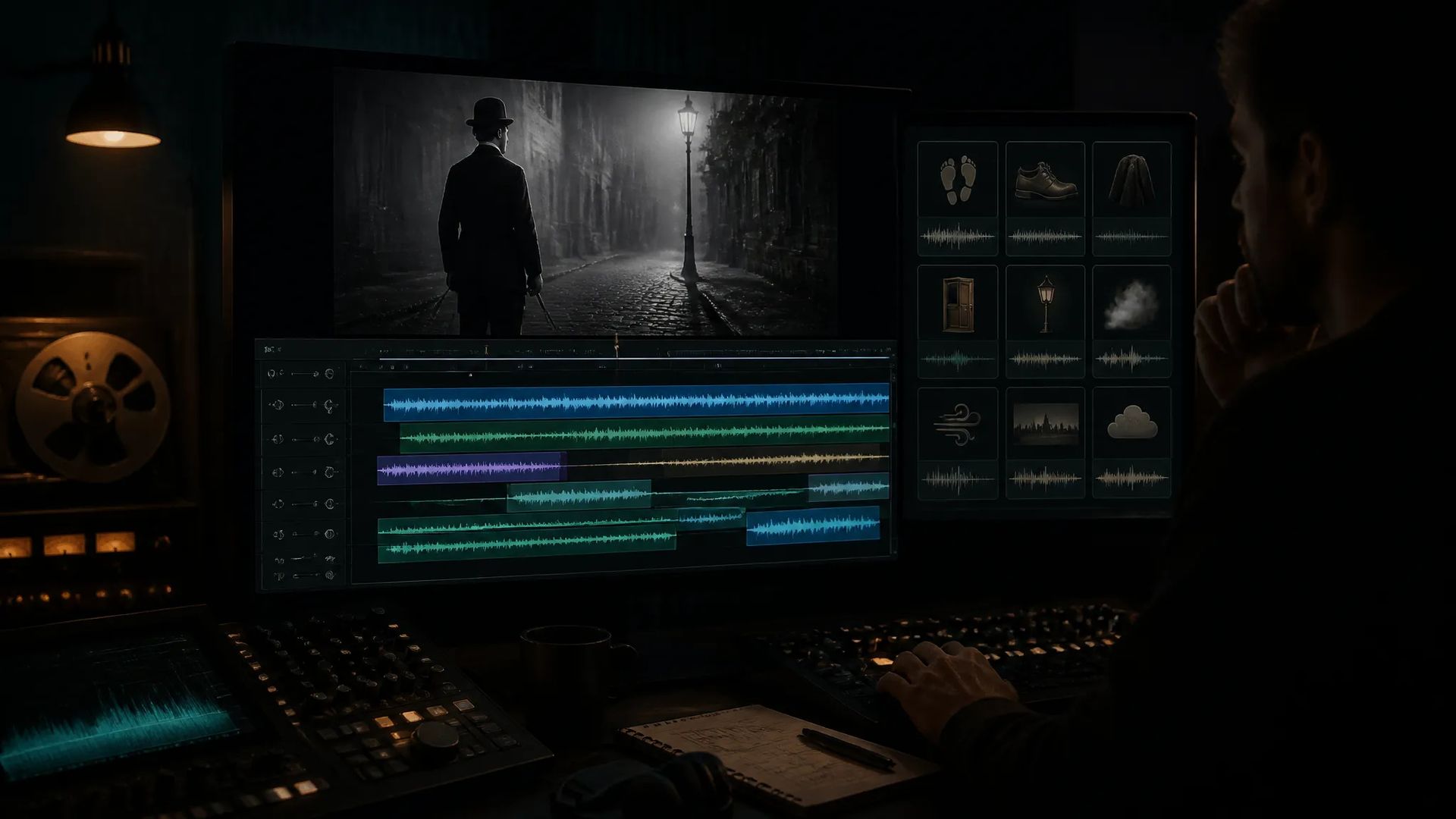
Score a silent clip
AI-generated video arrives with no audio — add matching sound before delivering it.
Upload silent footage and AI reads the picture to generate matching audio — footsteps, ambience, and impacts together, with nothing to hunt for.
The model analyzes what happens on screen and generates accordingly — no describing each action's effect yourself.
Ambient bed and action hits arrive together, so a whole sequence gets audio in one pass instead of layering effects one at a time.
Most video models return picture without sound. This page is the step that fills that gap.
The audio was generated for this specific footage, so the hits land on the right frames without manual nudging.
AI-generated video arrives with no audio — add matching sound before delivering it.
When a shot feels empty, one layer of ambience is what grounds it.

Footsteps, impacts, switches on screen, each landing on its actual frame.
A piece isn't finished until it has sound — add this layer, then export.
Open AI Video Sound Effects and upload the footage you want scored.
Optionally add a sentence describing the sonic atmosphere you want.
Download the result, or send it to the canvas to keep cutting.
The easiest gap to overlook in AI video isn't image quality — it's that most video models return picture only. A clip with no sound reads as empty even when it looks good. What's missing is the ambient layer that grounds it.
The traditional fix is a library trawl: find room tone, find footsteps, find the impact, then align each one to the timeline. Finding the sounds isn't the hard part — aligning them is, since you're counting frames for every action.
This page inverts that. Hand it the video, and the model reads what happens on screen and generates the audio. The timing comes from the picture, so it's aligned by construction.
That's the core difference from the sound-effect generator. There, you say and it makes. Here, it sees and it makes.
So a sentence can steer the atmosphere — indoors or outdoors, quiet or busy — but the primary signal is the footage. Something not on screen is hard to summon with words; for sound outside the picture, generating it separately with the sound-effect tool is the direct route.
Voice works the same way: this page delivers ambience and action sound. For intelligible dialogue, generate it with text-to-speech and combine both layers on the canvas.
Put this at the end of the pipeline: score after the picture is locked. Because it generates from the footage, any change to the picture means redoing the audio.
A practical layering: use this page for the clip's ambience and action sound, add a few emphasis hits with the sound-effect generator, then generate music and dialogue separately and mix everything on the canvas. Each layer stays controllable, and changing one sound doesn't mean re-running the whole pass.
There, you describe a sound and get that sound — right when you need one specific effect. Here it's inverted: you supply picture and it reads the picture to decide what should be heard. Use this page to score a whole clip at once; use the sound-effect generator for one particular hit.
Yes — it was generated for this footage, and the timing of each action is read off the picture. That's the main saving over finding effects yourself and then aligning a timeline.
A sentence can steer the atmosphere — indoors or outdoors, quiet or busy. But the primary signal is the picture, so something not present on screen is hard to summon with a description.
Mostly ambience and action sound. For intelligible dialogue, generate it separately with text-to-speech and combine both layers on the canvas. To have a person on screen mouth those lines, use lip-sync.
Video Sound Effects
Video*
Sound Effect Prompt
Background Music Prompt
Your generations will appear here once you sign in.
Creating an account is free.