Every December, parents try to catch Santa on camera. A phone gets propped against the bookshelf, the doorbell camera gets turned toward the tree, and in the morning the footage shows a dark living room and maybe the cat. We wanted the version where Santa actually shows up, so we made one in ZOOOP from a single still photo of a living room. This guide walks through what came out, which photo to take, and the few things that surprised us along the way.
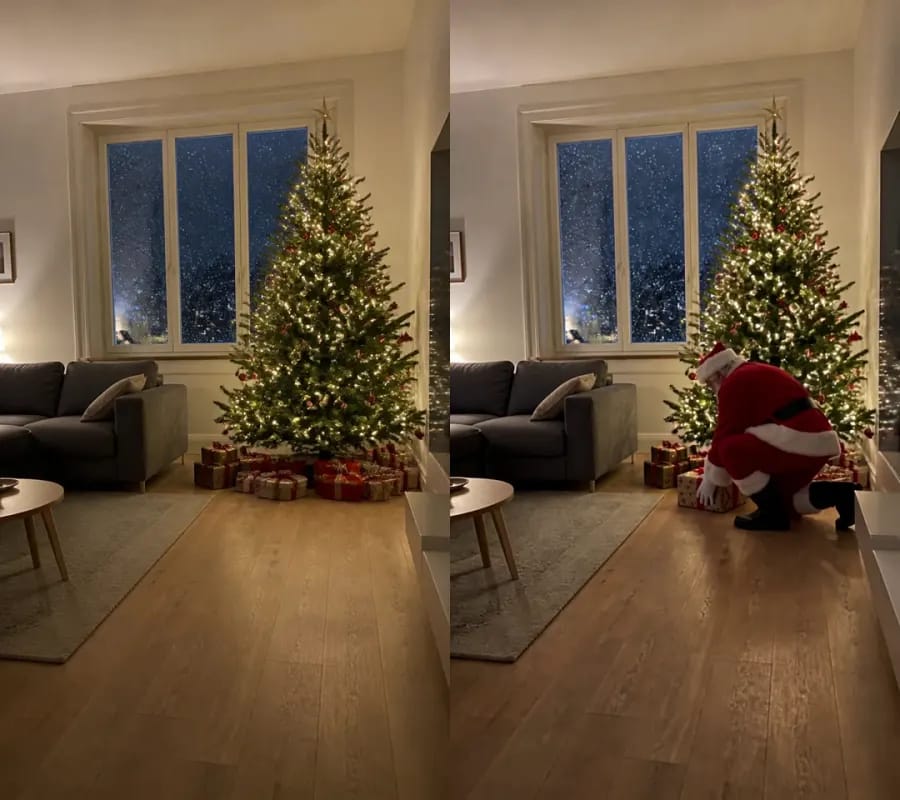
What a Santa cam video looks like
On the left is the photo we uploaded: a bright living room at night, a tall tree with warm lights, a grey sofa and snow falling past the window. On the right is a frame from the clip it turned into. The room is the same room, seen from the same spot, as if a small camera had been sitting on a shelf all evening.
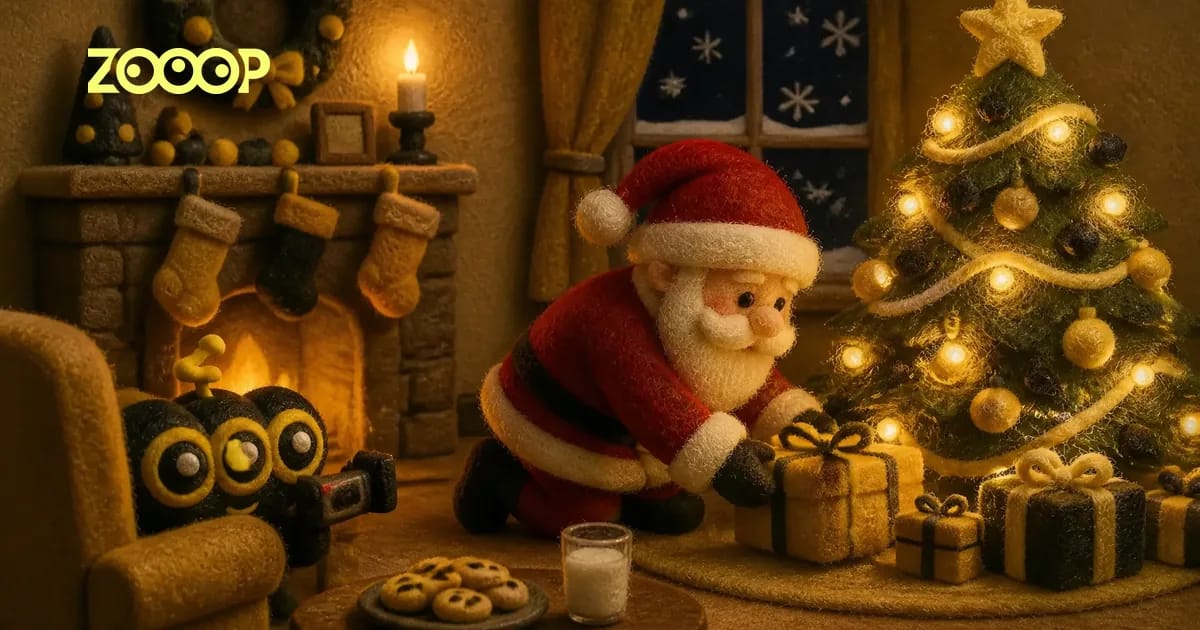
The clip runs 10 seconds in a vertical frame, with sound. Santa walks in with a wrapped present, kneels, slides it under the tree and stands up beside it. Then he notices the camera. He smiles, waves, and the shot slowly zooms in on him while he says, in a warm, deep voice, "Ho ho ho! Merry Christmas, Lily!" That one line is all he says. Underneath it you hear soft footsteps and the quiet of a house at night.
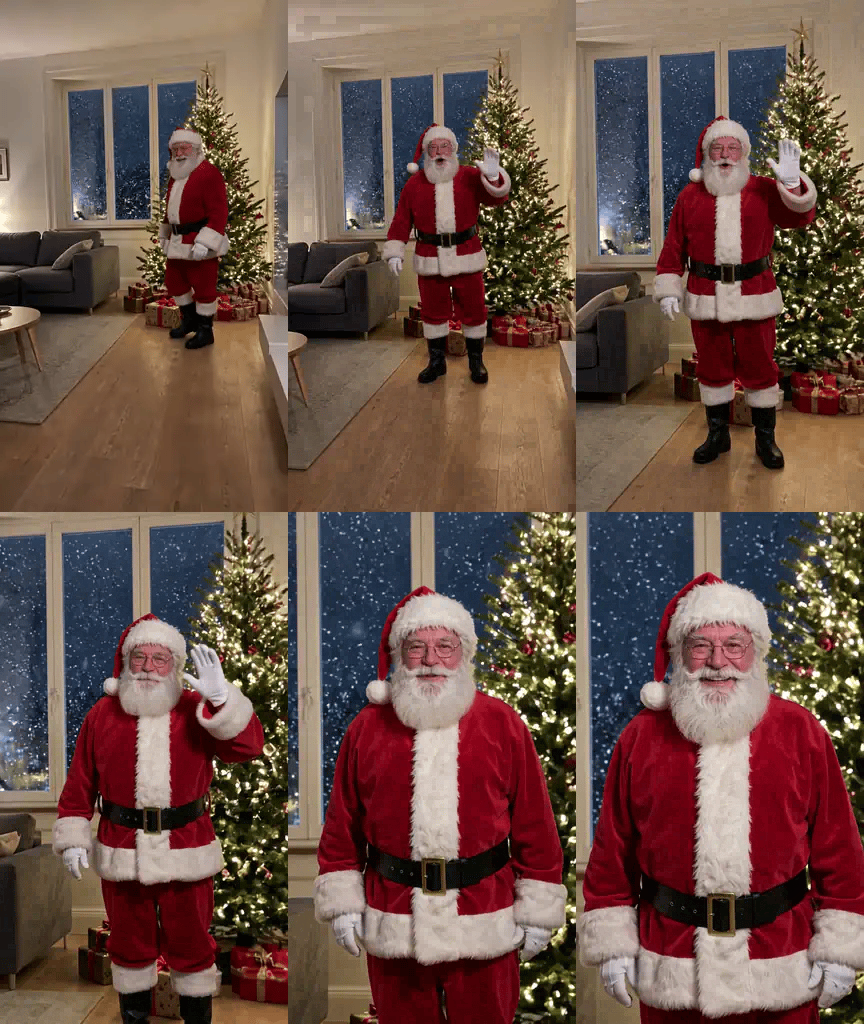
Notice that Santa never comes over to the lens. He stays by the tree and the camera does the moving, which is a big part of why it reads like a home camera catching a moment it wasn't meant to see, not like a greeting recorded for you.
How to catch Santa on camera in ZOOOP, step by step
- Take one photo of the spot where Santa should appear: your tree, your fireplace, or the plate of cookies you left out. Stand across the room, hold the phone upright, and make sure nobody is in the shot.
- Open the Santa Cam template and upload the photo.
- Pick a scene: Under the tree, Down the chimney or Eating the cookies.
- Type the name Santa should say, or leave the box empty for a plain "Ho ho ho! Merry Christmas!".
- Choose 480p or 720p, press Generate, and download the video when it's done.
That's the whole process. You don't write a prompt, film anything or set up a camera overnight; the scene, Santa's outfit and the timing are built into the template.
Tree, chimney or cookies: what each scene does
Under the tree is the one in the clip above, and the safest way to catch Santa on camera the first time, especially if your tree is the first thing anyone sees when they walk in.
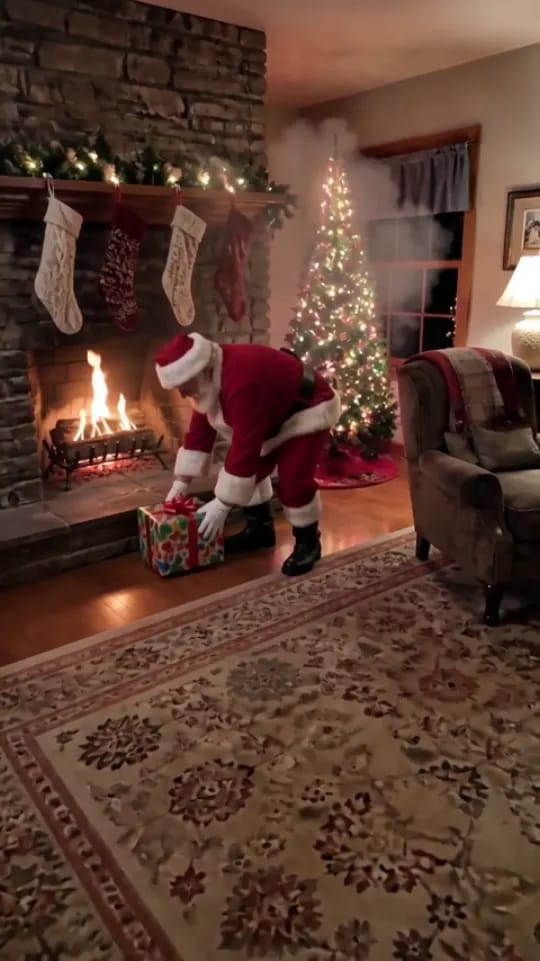
Down the chimney has Santa climb out of the fireplace in a small puff of soot, set a present on the hearth and brush himself off before he turns to wave. We shot a living room with a wide stone fireplace that was dark and unlit. As Santa climbed out, the fire came to life behind him. It reads as part of the magic, but if you want the room to stay exactly as it is, start from the tree scene instead.
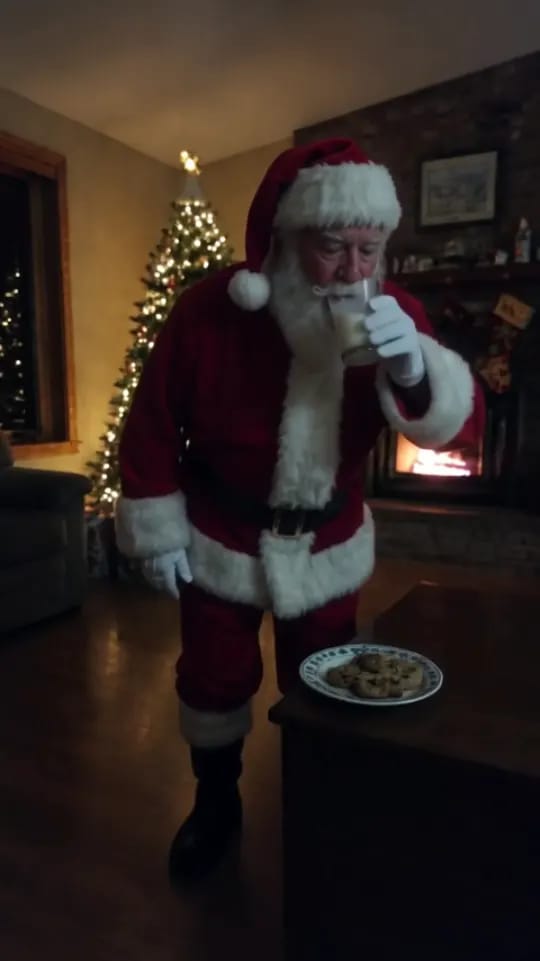
Eating the cookies has him walk over to the plate, take a bite and drink the milk before he waves. Distance matters more here than in the other two scenes. In our test the cookies sat on a coffee table only a few feet from the phone, so Santa ended up close to the lens and filled most of the frame. If you want him smaller and further away, put the plate on a table across the room before you take the picture.
No fireplace? Pick one of the other two. Each scene is built around the spot it names, so choose the one your photo shows clearly.
Which photo works best to catch Santa on camera
The best results came from photos taken the way a hidden camera would see the room: at night, with the room's own lights on, from a corner or across the room. The tree lights and lamps do a lot of work. A daytime shot still works, but it looks less like Christmas Eve.
A few more things we'd repeat:
- Leave floor in front of the spot. Santa needs room to walk in and kneel. A tree squeezed between the sofa and the wall leaves him nowhere to stand.
- Take the photo with nobody in it. The point is that the room was empty when Santa came by.
- Keep the phone upright. The video is vertical, so a vertical photo keeps the whole room in the frame.
- Don't tidy too much. Stockings, a blanket on the chair, toys on the rug: the more it looks like your actual living room, the better the trick lands.
Adding your child's name
When you catch Santa on camera for one particular child, the name is what makes it land. The name box takes a short first name. Santa adds it to the end of his only line, so "Emma" becomes "Ho ho ho! Merry Christmas, Emma!". We tried it with a name and without one, and both came out clean: with the box left empty he simply says "Ho ho ho! Merry Christmas!" and nothing else.
Santa says his line in English. If a name is unusual, spell it the way it sounds. With more than one child, make a separate clip for each, and switch the scene or the corner of the house between them so every kid gets their own visit.
Sharing it on Christmas morning
The obvious moment to show the kids you managed to catch Santa on camera is Christmas morning: play it on the TV while they're still in pajamas. It also works as a message to grandparents, with each grandchild's name in their own clip. If you post it publicly on TikTok, Instagram or YouTube, add the AI label those platforms ask for; the Santa cam footage is made by AI from your photo, not recorded.
More holiday ideas are on the Christmas templates page. If you'd rather be in the scene yourself, the Santa Sleigh AI Video puts you in the snow as two reindeer land behind you.
Frequently asked questions
Can you really catch Santa on camera?
Not in real footage. This Santa cam video is generated by AI from one photo of your room: your furniture and decorations stay, and Santa, his voice and the room sounds are added.
Do I need a security camera to make a Santa cam video?
No. You can catch Santa on camera with any phone photo of your room. The template frames the clip so it looks like a home camera recording from the spot where you took the photo.
What if I don't have a fireplace?
Choose Under the tree or Eating the cookies. Pick the scene your photo clearly shows.
Can Santa say my child's name?
Yes. Type a first name in the box and he ends his line with it. Leave the box empty and he says only "Ho ho ho! Merry Christmas!".
How long is the video?
Ten seconds, vertical, with sound. You can make it in 480p or 720p.
How many credits does it cost?
Pick a resolution and check the Generate button; it shows the current credits before you start.