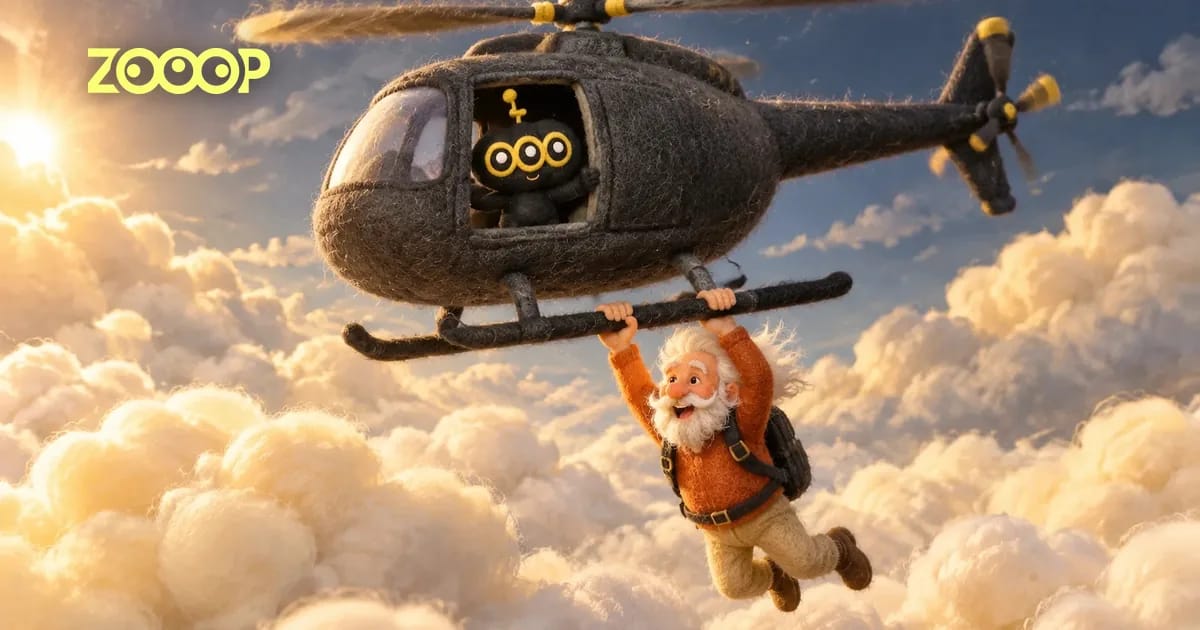
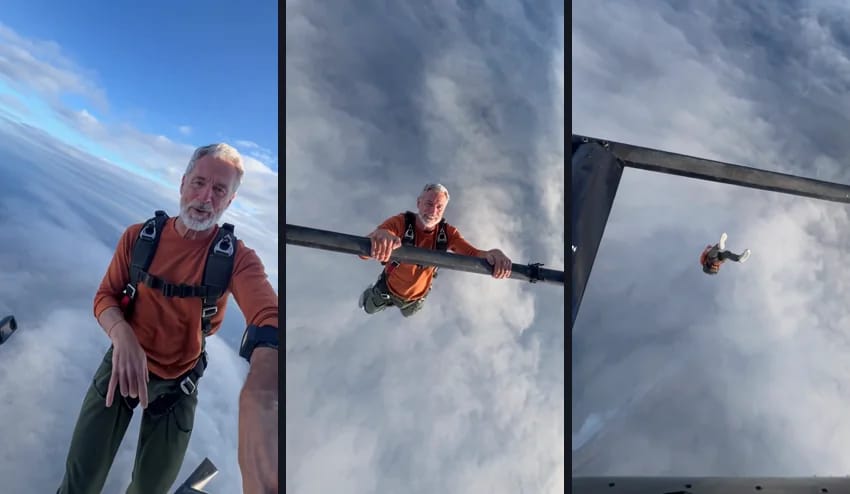
Silver hair, a white beard, an orange shirt. The man turns toward the camera, and only then do you notice the clouds behind him. He's taking a selfie outside a helicopter. The view cuts to the side of the aircraft, then looks straight down. He hangs from the landing skid, pulls himself up, and lets go. A moment later, he's a speck above the cloud deck.
With the ZOOOP Helicopter Skydive AI template, you can put the person in one clear adult portrait into that 15-second vertical clip. We made the example below with a fictional silver-haired character.
What happens in the three Helicopter Skydive shots?
The first two seconds or so are a close selfie. The clouds slide diagonally behind the jumper, and the camera is close enough to show his beard, collar, and harness straps. The next shot looks along the side of the helicopter as he moves down from the doorway to the skid. In the overhead shot, both hands grip the rail and the clouds fill the frame below his feet. The skid stays close to the camera after he lets go. The jumper gets small fast, and that change in scale makes the ending.
We also made a Helicopter Skydive AI clip with a younger man in the same scene. His cropped hair and face stand out in the selfie. From above, his blue sleeves are easier to pick out. The orange shirt does the same job for the older man against the blue-gray clouds. The two jumpers turn slightly differently as they fall. In both versions you can follow them into the distance for another few seconds.
Pick one photo with a clear face and shoulders
For a Helicopter Skydive AI video, start with a solo portrait in even light. A frontal or slightly angled photo works. Keep the eyes, mouth, and outline of the hair visible. Chest-up or waist-up framing gives you room for both the head and shoulders. The first shot comes in close, so a tiny or heavily backlit face makes the person harder to recognize.
Try a shirt your friends would recognize. The harness covers part of the chest, while the sleeves and collar stay visible. That's why you can still pick out the orange shirt in the overhead shot. If a hat shades the eyes, sunglasses hide much of the face, or someone else is partly in the frame, choose a clearer solo photo. Ask before using a friend or family member's picture.
Make the Helicopter Skydive AI video from one photo
- Open the Helicopter Skydive template and upload one clear adult portrait. The upload field takes one photo. The helicopter, clouds, and movements are already set.
- Choose 480p or 720p. Both make a 15-second clip in a vertical 9:16 frame. Use 480p for a quick share in a chat, or pick 720p to show more of the opening expression and clothing texture on a larger screen.
- Select Generate, then download the finished clip. To make a version for a second person, create a separate clip from their portrait.
Leave the last few seconds in when you share it
Try sending your Helicopter Skydive AI clip right after an everyday photo. Put a weekend snapshot first, then cut straight to the clouds. A caption as short as “Getting some air this weekend” can sit over that first shot. Leave in the final seconds so friends can see the figure disappear into the distance and realize the selfie was the setup.
Browse the ZOOOP template library for other clips you can make with one photo. If you want to start over with your own camera angle, weather, and setting, write a new scene in the AI Video Generator.
Frequently asked questions
How many photos does Helicopter Skydive AI need?
Use one clear adult portrait. Pick a solo shot that shows the face, hair, and shoulders.
Can I use an everyday selfie?
Yes. Use a selfie with even light and a clear view of the face. Keep the phone and sunglasses out of the way.
Is the clip the same length at both resolutions?
Yes. Both 480p and 720p produce a 15-second vertical video at 9:16.
Do I need to upload my own helicopter or cloud footage?
One portrait is all you need to upload. The helicopter, clouds, and three shots are part of the template.
Can two people appear in the video?
Each clip features one main character. To make versions for two people, generate a separate clip from each portrait.