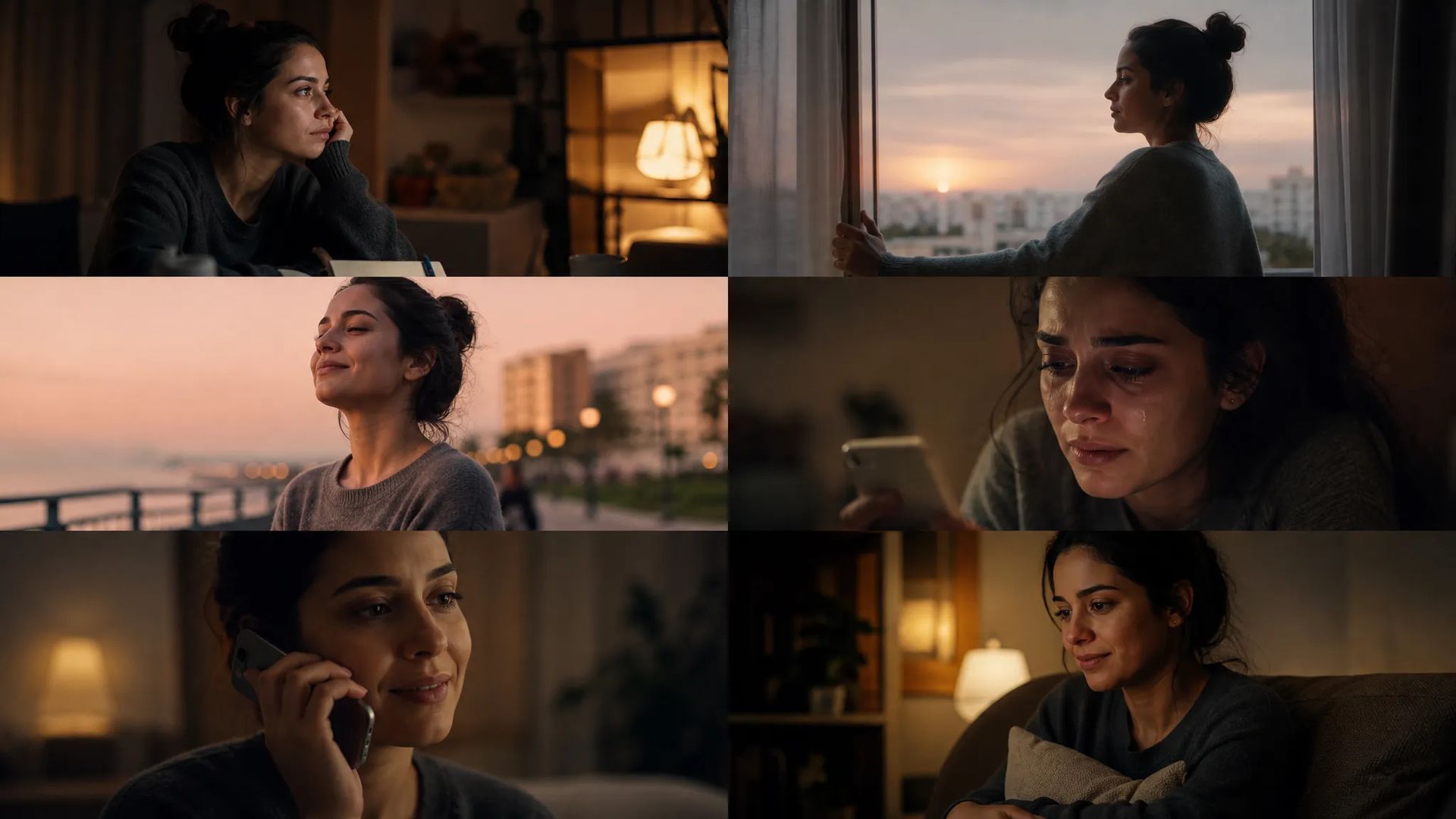
Narrative shorts and boards
Lay out a sequence with a beginning and an end from one description — see the story as shots before committing to a shoot.
Describe a shot and get video — or upload one image and let it move. Thirty-plus video models in one interface, several of them returning synced audio with the picture.
Veo, Kling, Seedance, Hailuo, Wan, Luma, Vidu and Pixverse all swap from the same panel — no second site, no new parameter names to learn.
Write a shot description, or upload a still as the starting frame and let the model carry motion forward from it.
Some models return native audio — dialogue, footsteps, room tone generated with the picture. You get a finished clip instead of silent footage waiting on a sound pass.
Landscape, square, and vertical phone are in the picker, with duration offered per model's real range — so you're not re-cropping or re-timing afterward.
Lay out a sequence with a beginning and an end from one description — see the story as shots before committing to a shoot.
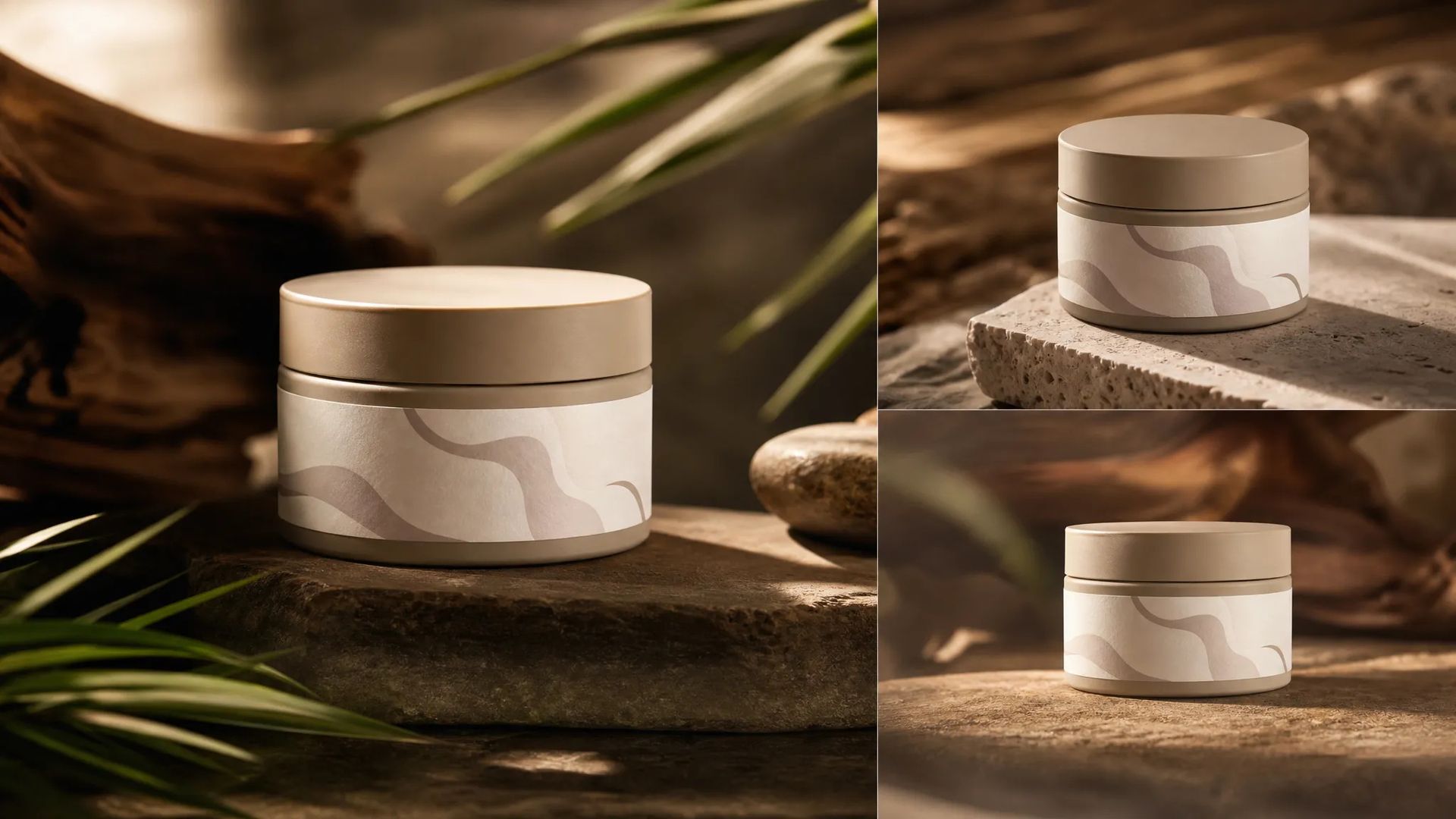
Lock the product's look and move the camera between hero, detail, and in-use shots without booking a stage.
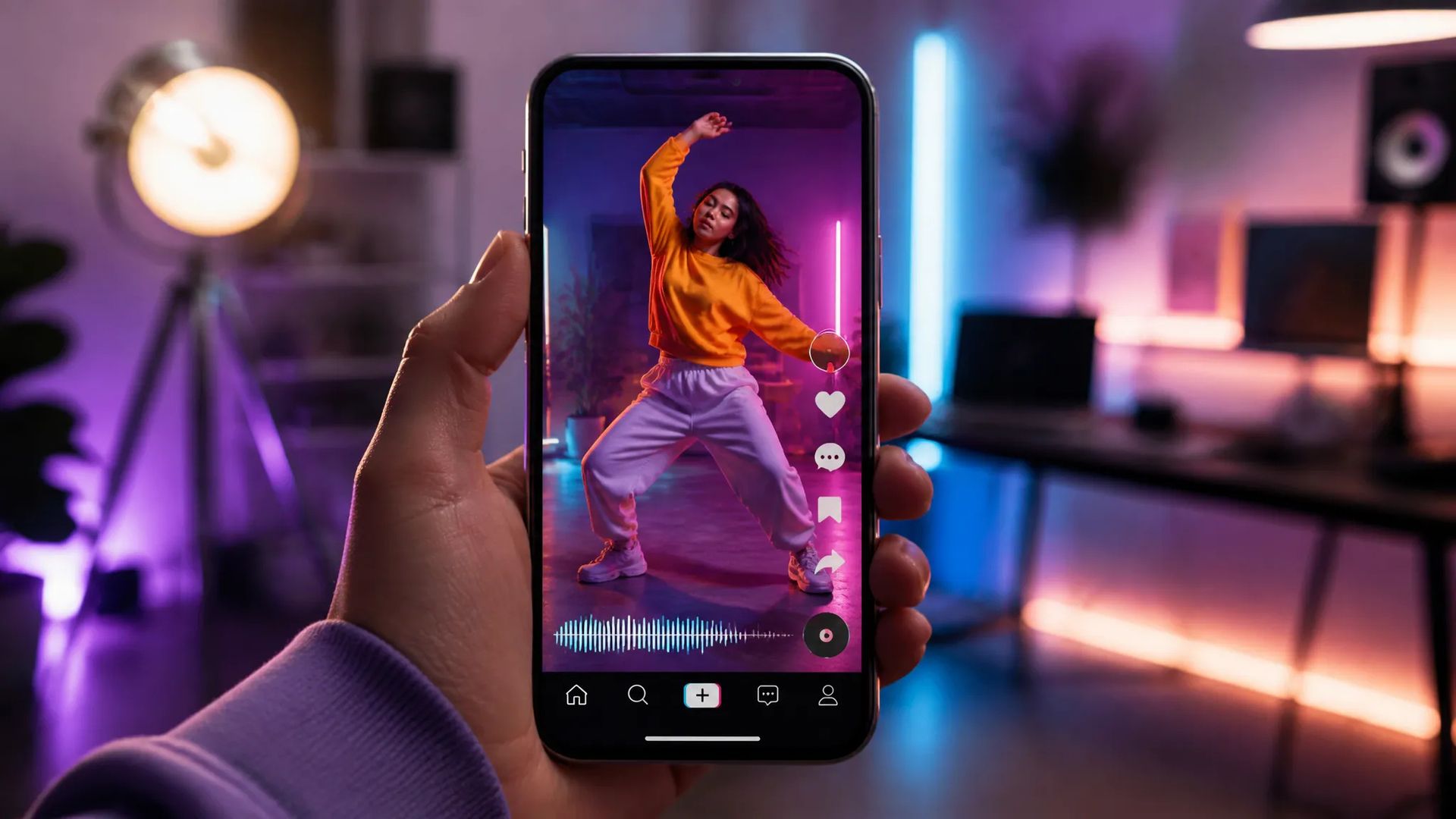
Render straight to vertical for feeds and stories — no cropping down from a landscape master.
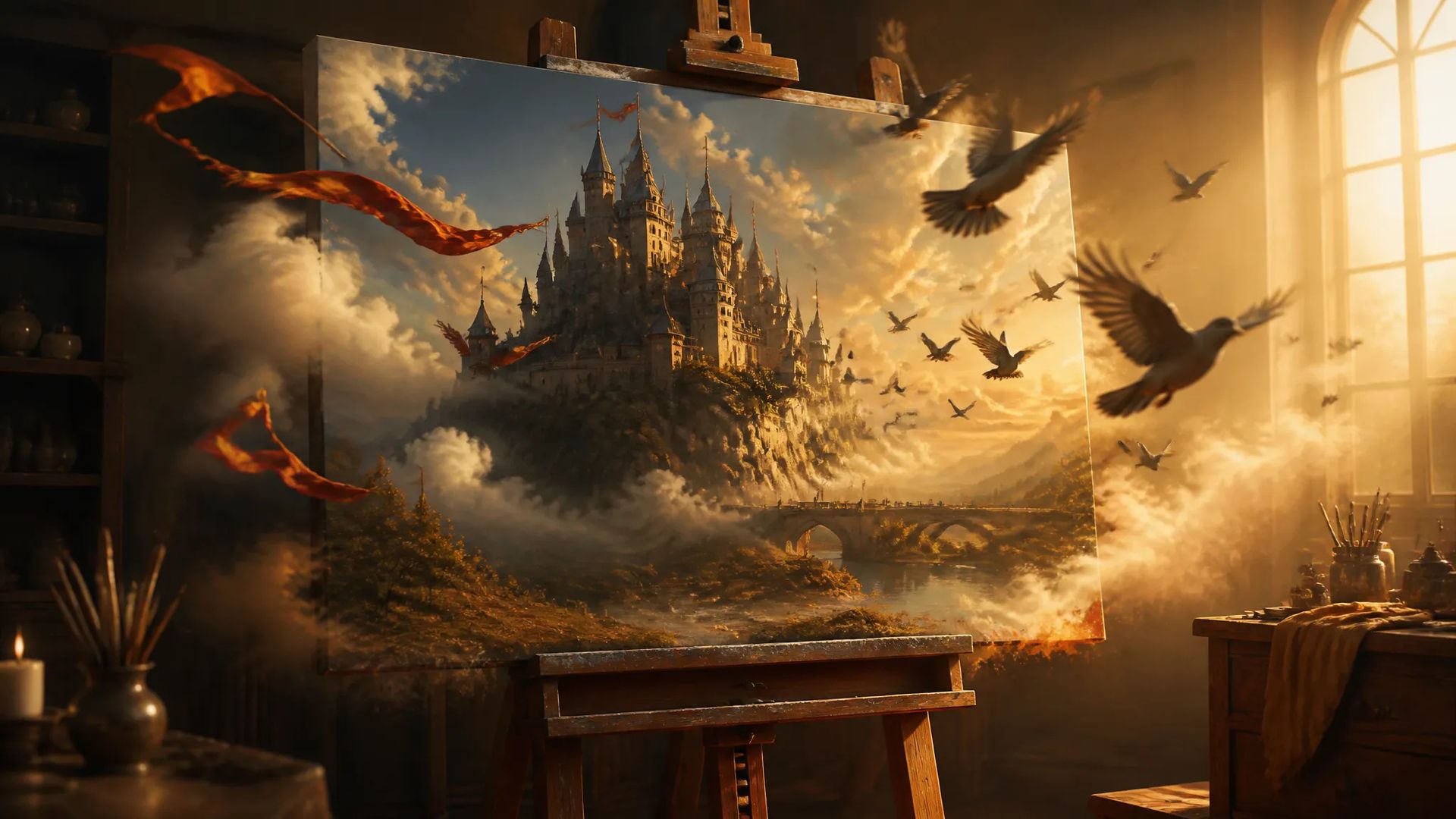
Already have an image you like? Upload it and generate camera movement and motion, turning a static frame into a shot.
Open the AI Video Generator, pick a model, and describe the shot and the motion you want.
Upload a reference if you're starting from a still, then set duration, aspect ratio, and resolution.
Download the result, or send it to the canvas to keep cutting.
Video models are turning over even faster than image models, and their strengths diverge sharply. One is good at breaking a long description into coherent shots. Another generates dialogue and room tone along with the picture. Another holds up better on real physics and lighting. Another is built for anime and stylized work.
The awkward part is that using more than one usually means accounts on several platforms — a new parameter panel each time, a separate balance to top up, and footage scattered across all of them.
The ZOOOP AI Video Generator collects that into one page. Description, reference image, and parameters on the left; output on the right; switching models is a dropdown. The panel reshapes per model, so you don't have to remember which one calls it duration or how many seconds it allows. Credits are shared, with no subscription and no expiry, so trying an unfamiliar model costs one clip.
What actually eats time in video generation usually isn't picture quality — it's everything you still have to add before the footage is usable.
So aspect ratios are offered at delivery sizes: landscape, square, vertical phone. No rendering wide and cropping to vertical after. Duration is offered per model's real supported range, and the options update when you switch. And some models return native synced audio — dialogue, footsteps, and room tone arrive with the picture, which removes a separate voice pass.
Already have a still you like? Upload it for image-to-video and the model carries camera movement and motion forward from that frame. A product photo becoming a product spot, an illustration becoming a moving board — that's this path.
This page generates a new shot from scratch. Several jobs have better entry points:
Treat this page as the opening move. Run one description through two or three models and see whose motion and texture suit your subject — that tells you more than any spec sheet. Once the direction is set, move to extend-video to go longer, to first-last-frame or motion-control for precise control, and to the canvas to assemble.
Video is slower and costlier than images, so it's worth dialing in the shot at a short duration and low resolution first, then spending the full parameters on the take you actually want.
Use text-to-video while the shot is still undecided — one description shows you several possibilities. Use image-to-video once you have a still you like, and the model carries motion forward from that frame, keeping the composition and the character. Both live on this page; uploading an image is the only difference.
Depends on the model. Some return native synced audio — dialogue, footsteps, and room tone generated with the picture. Others output picture only, in which case you can add sound with the sound-effect or text-to-speech tools and combine them on the canvas. The model panel marks what each one supports.
The supported range differs per model, and the duration options change when you switch models — what the panel shows is that model's real range. For something longer, the usual approach is generating a few shots separately, then joining them with extend-video or on the canvas.
Meaningfully slower than images — usually minutes rather than seconds, depending on the model, duration, and resolution. The job runs in the background, so you can close the page and come back; you'll be notified when it finishes and the result stays in your history.











Prompt*
Images
Videos
Audios
Aspect Ratio*
Resolution*
Duration*
Your generations will appear here once you sign in.
Creating an account is free.