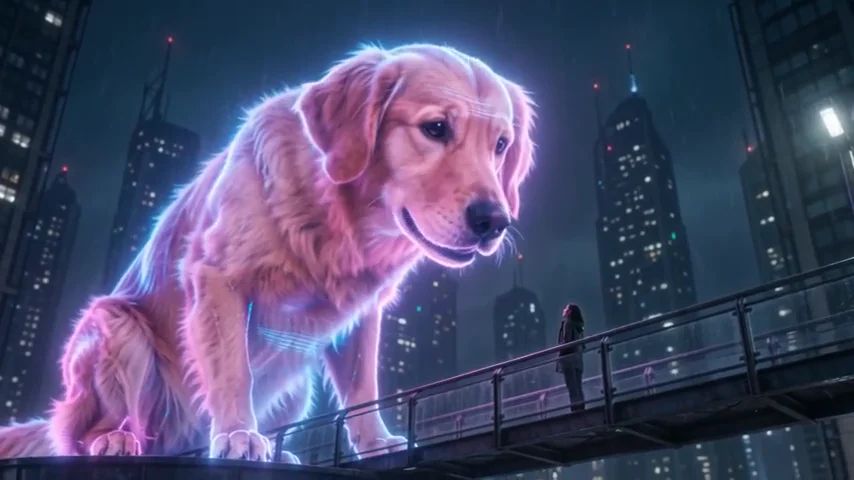
You Look Lonely AI Video: Turn Your Dog into a Giant Hologram
You are standing on a city skybridge in the rain. Above you, a golden retriever towers over the street, its ears and fur glowing pink and violet. It leans down and says, “You look lonely. I can fix that.”
When the speaker is the dog you walk every day, the line feels rather different.
The You Look Lonely dog template on ZOOOP lets you try this scene with one dog photo and one adult portrait. This guide uses two completed examples to show the dog and human versions, explain photo order, and help you review your own AI hologram video.
Watch the dog look down through the rain
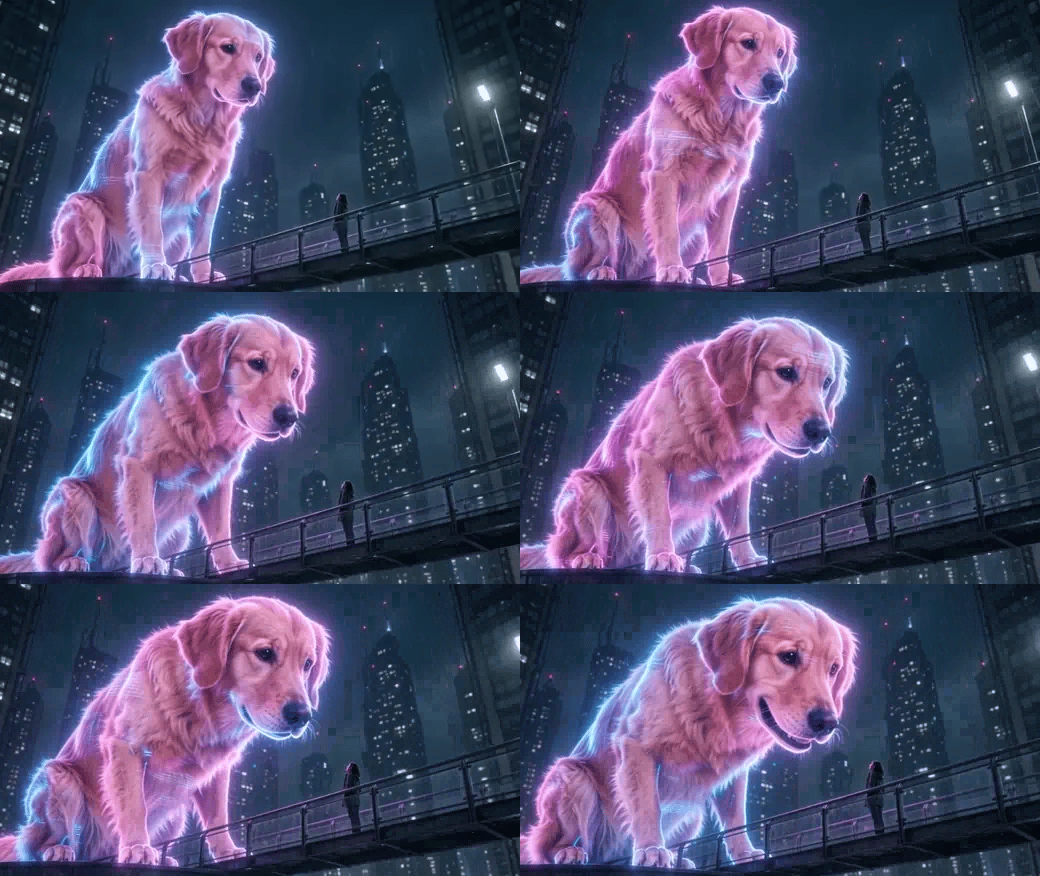
An excerpt from the dog example. This animation has no sound; play the full dialogue on the template page.
The clip opens on the person, then cuts to the giant retriever beside the bridge. Blue light outlines the dog, with pink and violet across its body. Buildings and rain haze make the size difference clear. As the dog leans forward, the person looks smaller still.
The ears, muzzle, and fur remain recognizably canine. Its mouth moves during the line, and the final shot returns to the person's softer expression. The full AI hologram video is about ten seconds long, in landscape format.
This example features a golden retriever. Other breeds have different ears, coats, and proportions, so their results need their own review.
Two photos: dog first, person second
Photo order is easy to overlook. In the dog version, the first photo supplies the giant dog and the second supplies the adult on the bridge. Check their order after uploading.
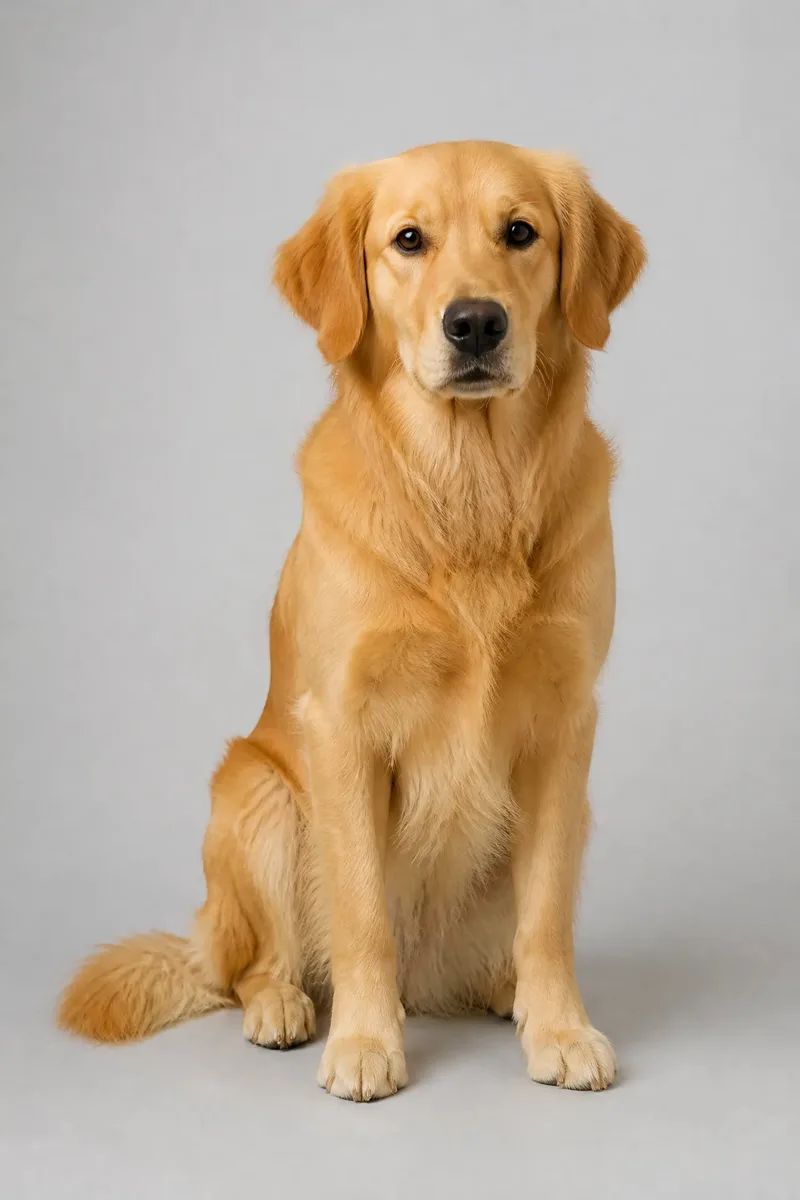
The AI reference photo used for this example, illustrating a suitable input composition.
Choose a photo of one dog with as much of its body visible as possible. Its face, ears, and front legs should be clear. A natural standing or sitting pose is a useful starting point; blankets or toys covering the muzzle hide information the AI hologram video needs.
Use a separate portrait of one adult with a clear face and even lighting. Neither photo needs a bridge, neon lights, or rain. Recognizable features matter more than elaborate styling.
Make your AI hologram video in ZOOOP
Open the template and check that the dog version is selected. Both versions use the dog cover, while the “Use cases” area shows the dog and human videos together. The cover alone does not tell you which version is active.
- Upload the dog photo first and the adult portrait second.
- Choose an available resolution, review the displayed cost, and start generating.
- Play the whole result. Listen to the dialogue and watch the lean and the person's reaction before downloading.
For your first AI hologram video, prepare two clear photos of your own before experimenting with unusual coats, hairstyles, or outfits.
The human version puts you or a friend in the sky
The human hologram template keeps the rainy encounter. The first adult portrait becomes the giant projection; the second becomes the person on the bridge. Use your own photos or portraits you have permission to use.
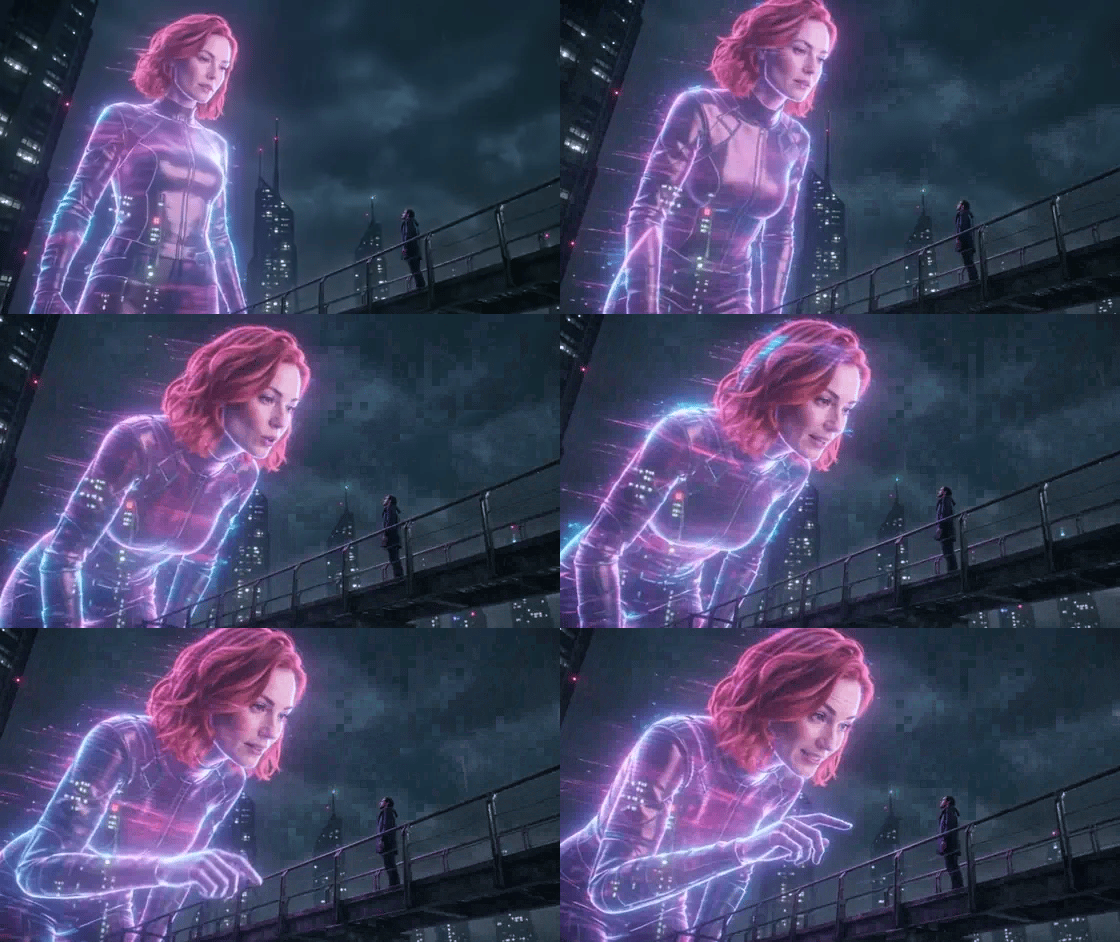
An excerpt from the human example; the full video is also available on the template page.
Here, glowing lines run across the projection, and it reaches out while leaning down. The dog version gets its charm from a familiar pet suddenly speaking. The human AI hologram video feels more like a distant science-fiction encounter. Both examples appear in the same “Use cases” area so you can compare them before choosing.
This guide demonstrates the two-photo setup. If a particular person should appear on the bridge, use their portrait as the second image rather than leaving that role to chance.
Check the face, then the mouth and bridge
An AI hologram video changes color and texture, so compare stable features first: the dog's ears and muzzle proportions, or the person's face shape and hairline. A pink outline alone is not enough to establish a likeness.
Watch the speaking and leaning sequence. Check that the mouth movement looks natural and the dialogue is complete. Then look at the bridge: does the projection pass through the railing, do its proportions remain consistent, and is the person still recognizable?
These are review points, not a list of defects found in the examples. The finished dog retains a fairly solid fur texture. If you expect a completely transparent projection, watch the sample first to judge whether the look suits you.
Leave time for the line when sharing
The turn in this AI hologram video comes from looking up, making eye contact, and hearing the line. Keep a short pause around the lean and preserve the person's final reaction. Avoid placing captions over the dog's mouth or the person's face.
The examples are landscape videos. Before fitting one into a vertical post, check that both the projection and the person remain visible. Cropping the sides can remove the size contrast.
A caption can be as simple as “When my dog notices I've had a lonely day.” Label it as AI creation and let the scene finish. Try the dog hologram template, or browse the template library for another setting.