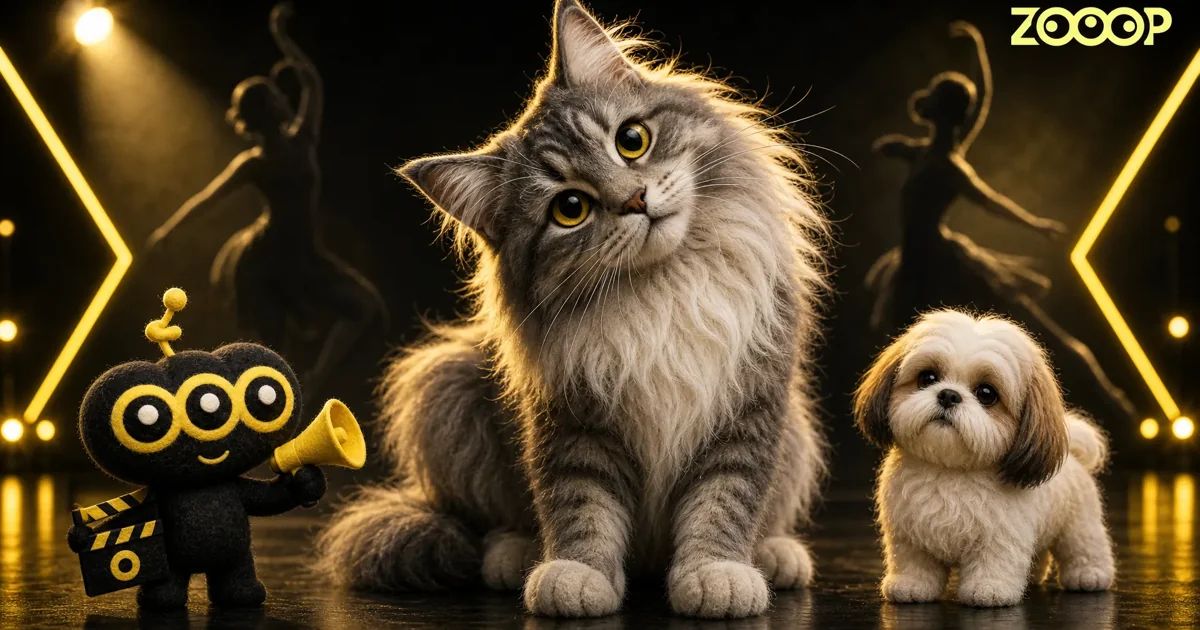
Put A Ring On It AI Cat Dance: Turn One Pet Photo into a Video
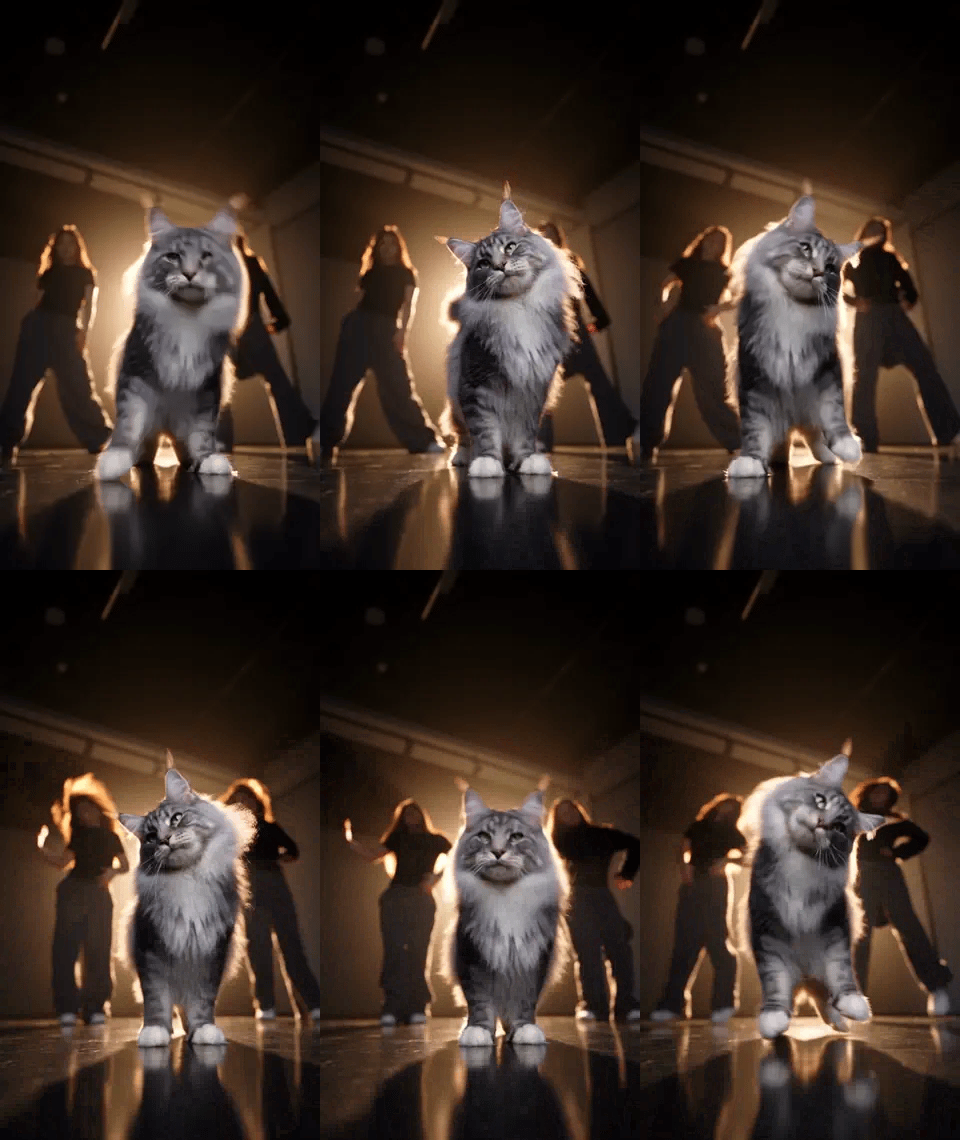
A cat stands close to the camera, with two backup dancers moving behind it. A slight lift of the chin, a head tilt, a flick of fur—and the cat has everyone's attention.
That is the look of the Put A Ring On It Pets template: a dark studio, a reflective floor, a low camera angle, and your pet in the foreground. Upload one photo to make an AI cat dance video of about 19 seconds in ZOOOP. Dogs can take the lead too. Below, we use our finished Maine Coon and Shih Tzu examples to show what to look for in a photo and what to check in the result.
Watch the examples: a cat's stare and a dog's flying fur
The Maine Coon's face carries the cat version. Pointed ears, grey-and-white markings, and a thick ruff stay at the centre of the frame. Even a small tilt of the head feels expressive. Two dancers move in the background while the pet keeps its four-legged shape, without standing up like a person.
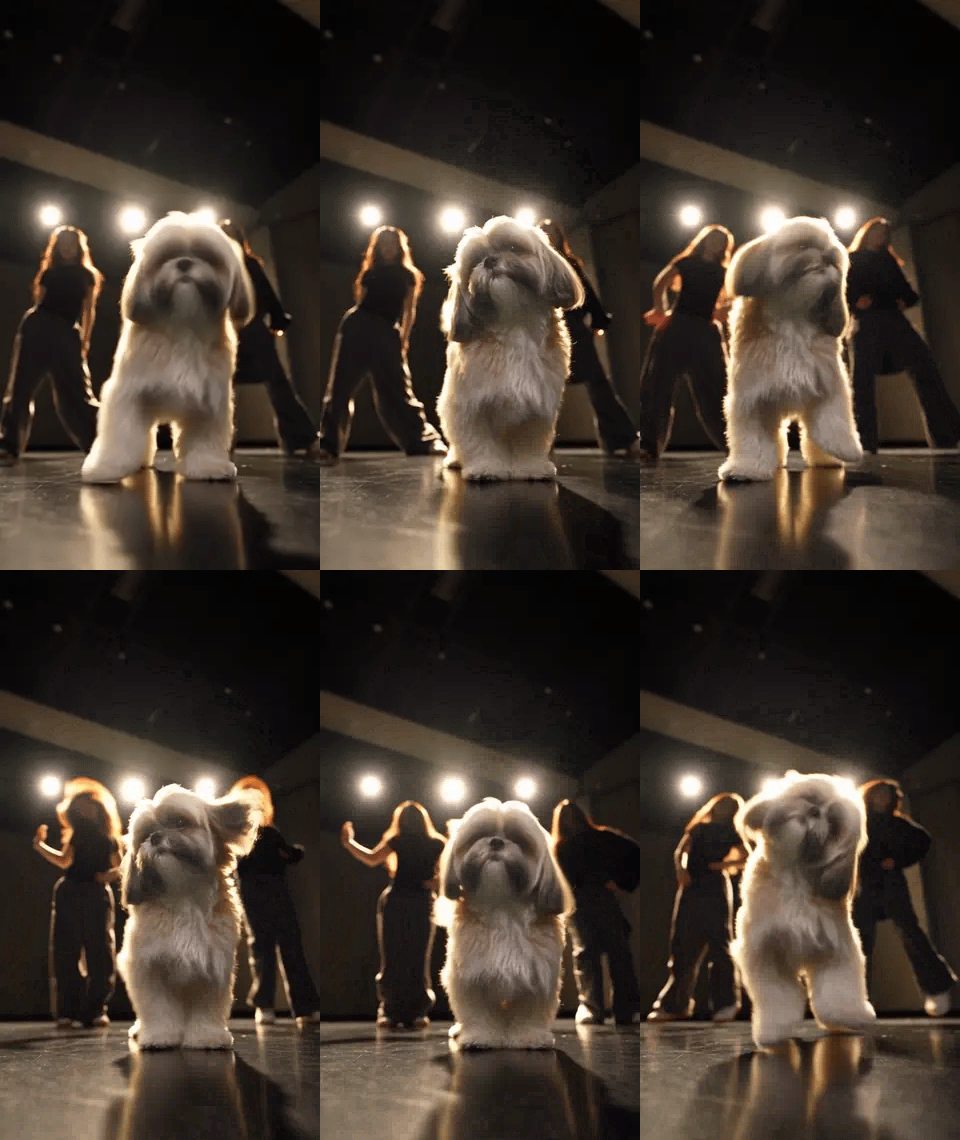
The Shih Tzu version draws more attention to its coat. Long fur around the ears swings with each head movement, giving the performance a bouncier feel. The two clips have similar staging, but changing the pet changes the mood.
These animations are short excerpts. You can preview the full videos on the template page. They show what we got from these two photos; other pets will not necessarily move in exactly the same way.
Choose a photo where you can recognise your pet
For an AI cat dance, start with a photo that clearly shows the features you know: eyes, nose, ears, and coat markings. Ideally, the body and paws should be visible too. A full-body photo in soft window light makes those details easier to assess than a close-up taken in a dark room.
Use a picture of one pet. Two cats curled together, a person holding a dog across its body, or paws buried in a thick blanket are awkward starting points. A plain background is fine. A clear face and an easy-to-see body outline matter more than an impressive setting.
Long fur makes head tosses easier to notice, though short-haired pets can also be tried. There is no need to edit your pet into a dancer first. Keep its natural body and proportions rather than adding long legs or human arms.
Generate your video in ZOOOP
Open the template page and follow three steps:
- Upload one photo. Choose a single cat or dog and check that the face, ears, and body have not been cropped out of the preview.
- Choose a resolution. The page offers 480p and 720p. Pick what suits your intended use, then check the credits shown on the generation button.
- Generate and review. Play the complete result to check your pet's appearance and movement before downloading it.
The AI cat dance template already uses a roughly 19-second, vertical 9:16 composition. You do not need to describe the studio or choreograph the background dancers. To explore other ways of making videos, visit the AI Video Generator. For a different scene, browse the template library.
What we noticed in the two finished clips
In the Maine Coon example, we checked the pointed ears, muzzle, and grey-and-white markings. The cat remained recognisable through the head lifts and tilts, with small paw lifts and shifts of weight. The Shih Tzu retained its facial appearance and pale, long coat, with movement around the ears.
Both clips have motion blur during fast head tosses. In an AI cat dance video, a blurred moment can feel fluid when it plays, even though the face looks less sharp in a paused frame. For a cover image, choose a moment when the head is steady and the eyes are visible.
We did not notice obvious extra limbs in these examples. That does not guarantee every result will look the same. Check your pet's identity, paw shapes, and body proportions, especially during paw lifts and downward head movements.
If the result does not look like your pet
Compare the video with the original photo and identify the main problem. If the eyes and nose stay fuzzy, try a clearer face. If the body proportions look strange, choose a picture showing more of the body and paws. Avoid changing the photo, framing, and clothing all at once; that makes it harder to tell which change helped.
If your AI cat dance only looks soft during one quick turn, watch the surrounding movement before deciding to generate again. A face that keeps changing, an extra paw, or a twisted body is a reason to reject the clip. Increasing the resolution does not guarantee a fix for those problems.
If the original photo is too dark, you can use AI Image Editing to adjust the brightness or simplify the background first. Check the coat afterwards so you do not lose the markings that make the pet recognisable.
Watch the full performance once more before sharing
Play it full-screen on your phone. Look for changes to the eyes or paws during quick movements, and check that the edges of the frame do not cut off the ears. A simple caption in your own voice is enough: “Usually ignores me. Apparently loves an audience.”
Choose a familiar photo and try one AI cat dance with Put A Ring On It Pets. When the result is ready, look at the expression as your pet lifts its head. That little moment of recognition is what makes the clip fun.