Gemini Omni Flash Review: We Tested Google's Veo 3.1 Replacement on Generate, Edit and Extend
Veo 3.1 is on its way out. Google's Gemini API deprecation notes are blunt about it: the Veo 3.1, Veo 3.1 Fast and Veo 3.1 Lite previews can shut down as early as October 22, 2026, and only one replacement is listed for all three. It's Gemini Omni 1.1 Flash.
Google released it on August 27. We added Gemini Omni Flash to ZOOOP over the last two weeks and ran every mode it offers. This is what we saw, good and bad.
The short version
- Gemini Omni Flash puts generating, editing and extending in one model. When a clip comes out wrong, you don't start over on a different model. You describe the fix in a sentence, or add a few seconds to the end.
- Every clip has sound. Dialogue, footsteps and ambience come out with the picture. The catch: you can't switch it off, only steer it.
- Clips run 3 to 10 seconds, in 16:9 or 9:16 only. Longer takes or square framing need another model.
- The 360p draft tier is great, but re-rendering at 720p gives you a new clip, not a sharper copy of the draft. Plenty of people will assume otherwise. There's a side-by-side below.
What Gemini Omni 1.1 Flash is, and why Veo 3.1 is retiring
Veo is Google's long-running video line, and Veo 3.1 was its last flagship. Gemini Omni takes a different route. It is a multimodal model: text, images and short video clips all count as input, and the output is video with audio.
For creators the practical change is that one model now does five jobs: text-to-video, image-to-video with an optional last frame, reference-to-video, editing an existing clip, and extending a clip. Before, those jobs meant hopping between several AI video models. Gemini Omni Flash covers all of them.
Is there a Veo 4?
A lot of people are searching for Veo 4. As of publication (October 11, 2026) we found no model ID or launch announcement for a Veo 4 in Google's public documentation. The successor Google names for the Veo 3.1 family is Gemini Omni 1.1 Flash.
So the practical advice: if you've been waiting for Veo 4, you can start with Gemini Omni Flash now. If Google does ship a new model later, most of your prompts and workflow will carry over.
Five modes, tested
Text-to-video: it cuts on its own
We asked for "a golden retriever puppy chases falling autumn leaves in a sunlit park, slow motion, warm cinematic light, ambient birdsong", 10 seconds long. The result surprised us: Gemini Omni Flash cut between four shots on its own inside those 10 seconds (a wide, a close-up, the chase, the puppy running off), as if someone had edited it.

That's handy for short-form work, since one generation is already a little sequence. If you want a single unbroken take, try saying "one continuous shot" explicitly in the prompt.
First and last frame: it fills in the middle
In first and last frame to video we gave it a grey robot and the same robot in orange, with a one-line prompt: the robot shakes itself and its shell slowly turns orange. Three seconds, vertical. The color change was smooth, and the robot's shape, its eyes and the balloon next to it all held.

Reference-to-video: images lock identity, clips bring motion
This is the most interesting part of Gemini Omni. Next to the prompt you can add up to 10 reference images and up to three video clips of no more than 3 seconds each. We gave it two robot photos and a 2.5-second clip of a park:

It returned the two robots rolling side by side across that same lawn, with the same light and tree shadows as the reference clip:
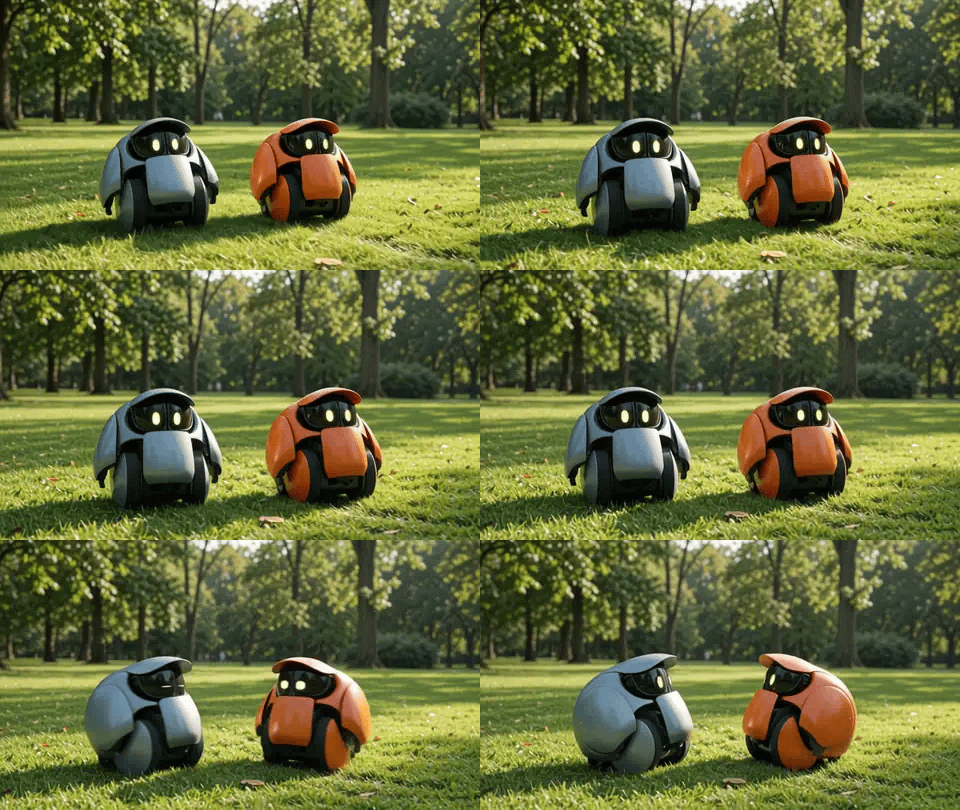
Audio inside a reference clip is ignored. Clips only carry motion and look.
Editing with one sentence: new jacket, same person
In video edit we uploaded an 8-second clip of a man in a yellow hoodie standing in a park. The prompt: change the yellow hoodie into a red leather jacket, keep everything else unchanged.
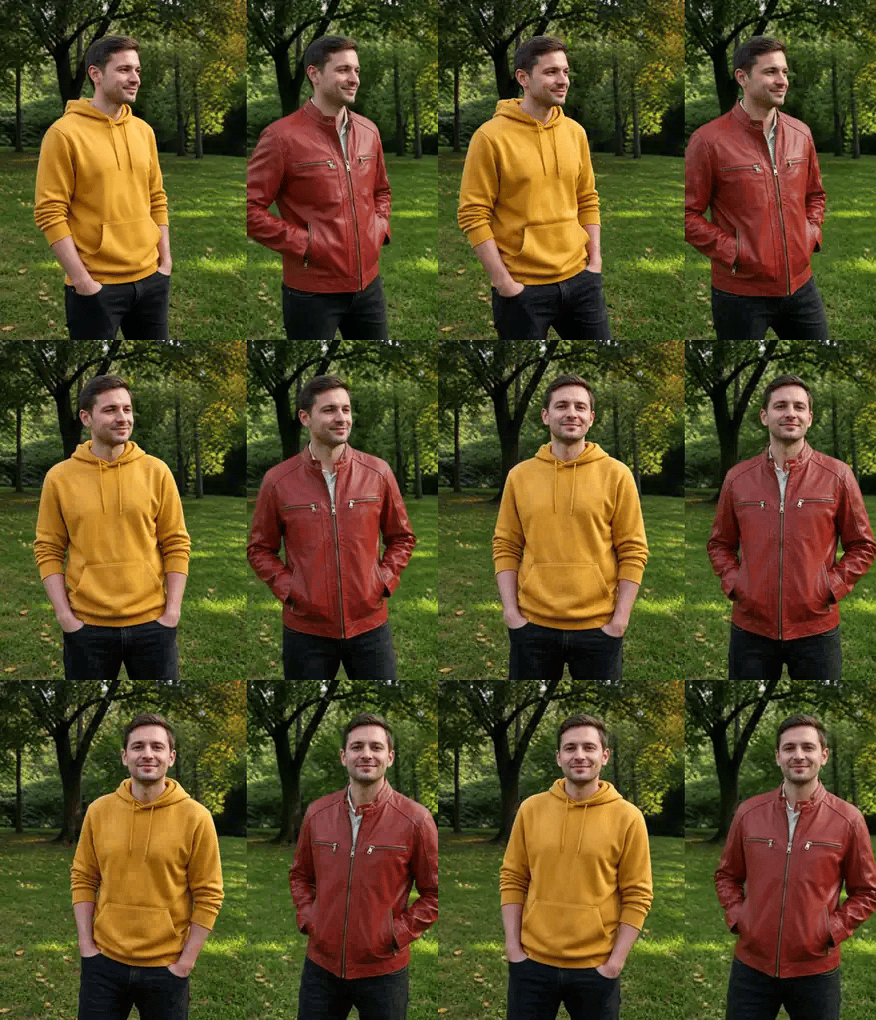
Face, hair, pose, background and timing stayed put. Only the jacket changed. An edit like this used to mean a reshoot.
Extend: a few more seconds at the end
On the same clip we used extend video to add 3 seconds: he smiles, waves at the camera, then walks out of frame to the right.
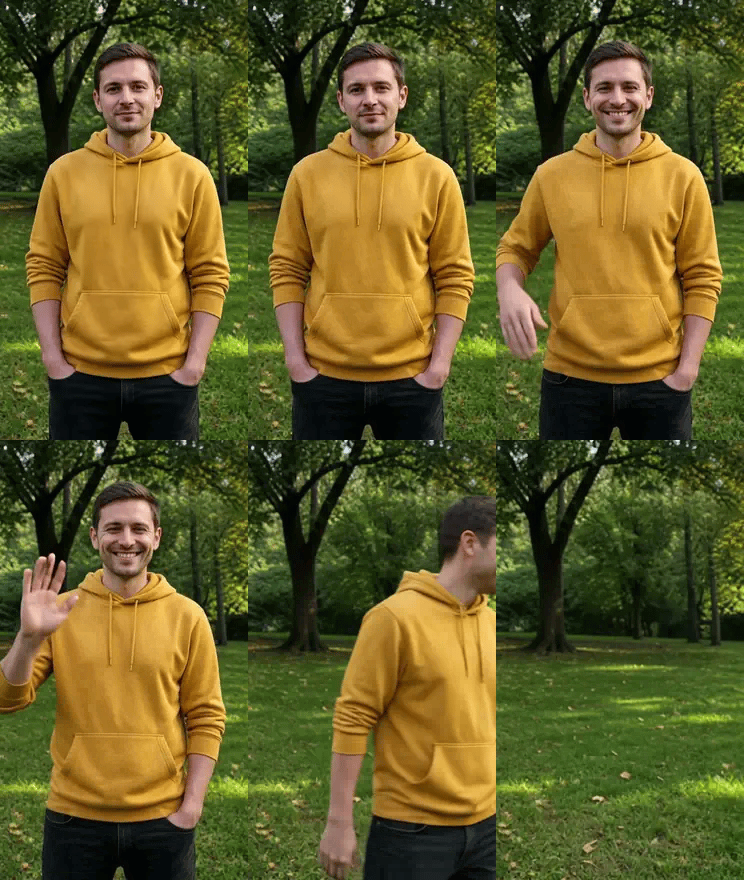
All three actions happened, though the wave is brief. Three actions in three seconds is a squeeze, so give a busy continuation a few more seconds.
From 360p drafts to 4K, and one misunderstanding
Gemini Omni Flash offers four resolutions: 360p, 720p, 1080p and 4K. Google designed 360p as a draft tier: fast and low-cost, ideal for finding a composition. 1080p and 4K are upscaled from the native frames.
One thing needs saying plainly: running the same prompt again at 720p gives you a new clip, not an enlarged version of your 360p draft. Here is the same latte-art prompt, 360p on the left, 720p on the right:

Composition and action are close, but the cup, the hands and the camera angle all changed. So the right way to use 360p is to test prompts: find the wording that points the shot in the right direction, then generate at a higher resolution. Don't pick one draft and expect the HD version to match it frame for frame.
What broke, and the limits
A few things worth knowing before you start:
- Audio can't be turned off. If you only want ambience, write "no dialogue" or "no music" in the prompt, or mute the clip afterwards.
- Only 16:9 and 9:16. We edited a vertical clip with a non-standard ratio and the output came back as a standard 9:16, trimming a little off the edges.
- 10 seconds per clip. Source clips for editing and extending also have to be 10 seconds or shorter.
- Strict safety filters. Photos of some recognizable people are refused, so this isn't the model for putting a specific person into existing footage.
- English prompts are the most reliable. Google lists English as fully supported; other languages haven't been formally evaluated.
Switching from Veo 3.1
Most habits carry straight over:
| What you did in Veo 3.1 | How to do it in Gemini Omni Flash |
|---|---|
| Text-to-video | Text-to-video, with any length from 3 to 10 seconds instead of 4/6/8 |
| First frame / first and last frame | First and last frame mode, same idea |
| Reference images for consistent characters | Up to 10 reference images instead of 3, plus reference clips |
| Extend | Extend mode, 3 to 10 seconds |
| Audio off | No switch; steer it in the prompt |
The new part is editing. A clip you didn't like in Veo meant starting over; now you can fix it.
When to pick a different model
Gemini Omni Flash is an all-rounder, not the best at everything:
- To put a specific person into an existing clip, use MiniMax H3.
- For takes longer than 10 seconds, or 1:1 and 4:3 framing, use Wan V3.0, which goes up to 30 seconds.
- For multi-shot sequences, or edits of clips longer than 10 seconds, use Seedance V2.5.
- To copy a dance onto a character move for move, use Kling V3 motion control…
They all live on the same AI video generator page and share one credit balance, so switching is one click.
The bottom line
After two weeks, what stuck with us about Gemini Omni 1.1 Flash is how little friction there is: you can take a clip from first draft to finished without leaving the model. Test the direction at 360p, fix what you don't like with a one-sentence edit, and extend the shot when it ends too early. For Veo 3.1 regulars the switch costs very little, and you gain a whole editing toolkit.
For specs and more examples, see the Gemini Omni 1.1 Flash model page. To cut several AI video clips into one piece, line them up on the Generative Canvas.