How to Do the Yung Lean Storm Trend: Put Yourself in the STORM II Music Video
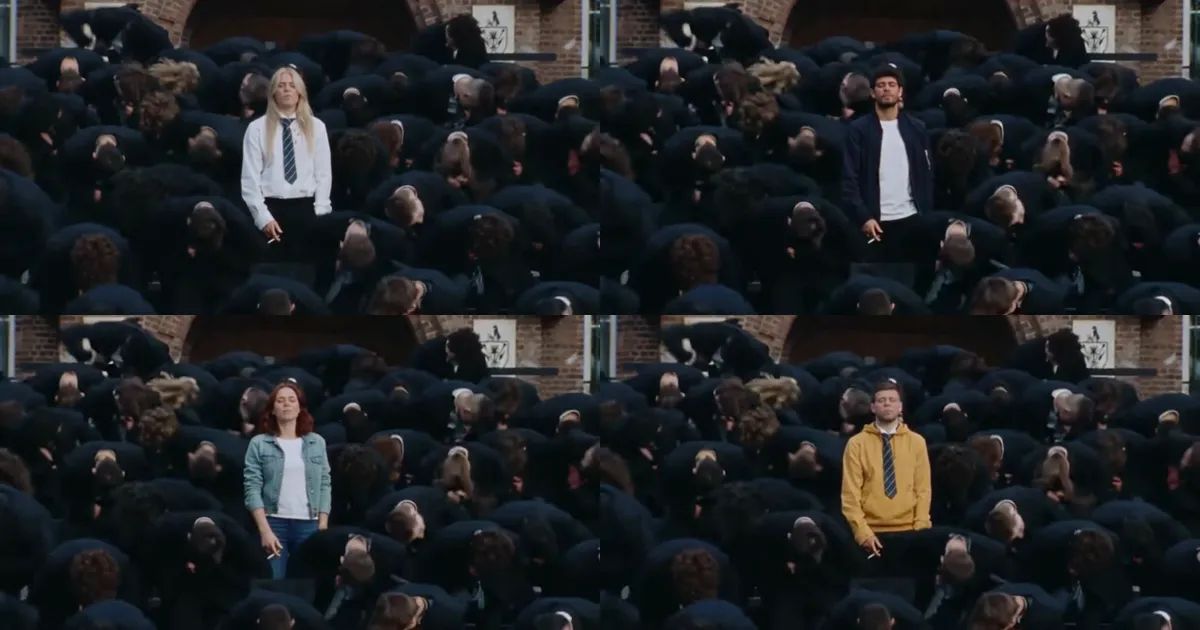
A young man in a white shirt and a loosened striped tie squints into the camera, a cigarette in his mouth. He turns, walks through row after row of students in dark school blazers, and stops right in the middle of them. A few seconds later the whole crowd bends forward, throws their heads back and flails, and he doesn't move at all.
That's the Storm trend. Lately you can't scroll far without seeing someone who put themselves in that white shirt. This post covers where the Storm trend comes from, what happens in those 26 seconds, and how to make your own version from a single photo.
What the Storm trend is
The footage is the opening of the official music video for "STORM II" by GENER8ION and Yung Lean. There's barely a plot. It's one person against a few hundred: everyone else moves, and the lead stays perfectly still.
It caught on for a simple reason. Standing in the middle of a crowd while the whole place goes off around you is a main-character moment most people have imagined, and this clip makes it look cold and cool. People started swapping themselves into the video in September, tutorials followed, and the Yung Lean Storm clip turned into a trend of its own.
What happens in the 26 seconds
The Storm trend uses the full first 26 seconds of the music video. Roughly:

- 0–5s, the close-up. The lead looks into the camera with a cigarette in his mouth, then turns away.
- 5–16s, the walk. With his back to the camera, he makes his way through the rows of students.
- 16–20s, the stop. The camera pulls back. He stands in the middle of the crowd while everyone stares ahead.
- From about 21s, the eruption. The whole crowd bows forward together, then snaps upright and throws their heads back. He doesn't move a muscle.
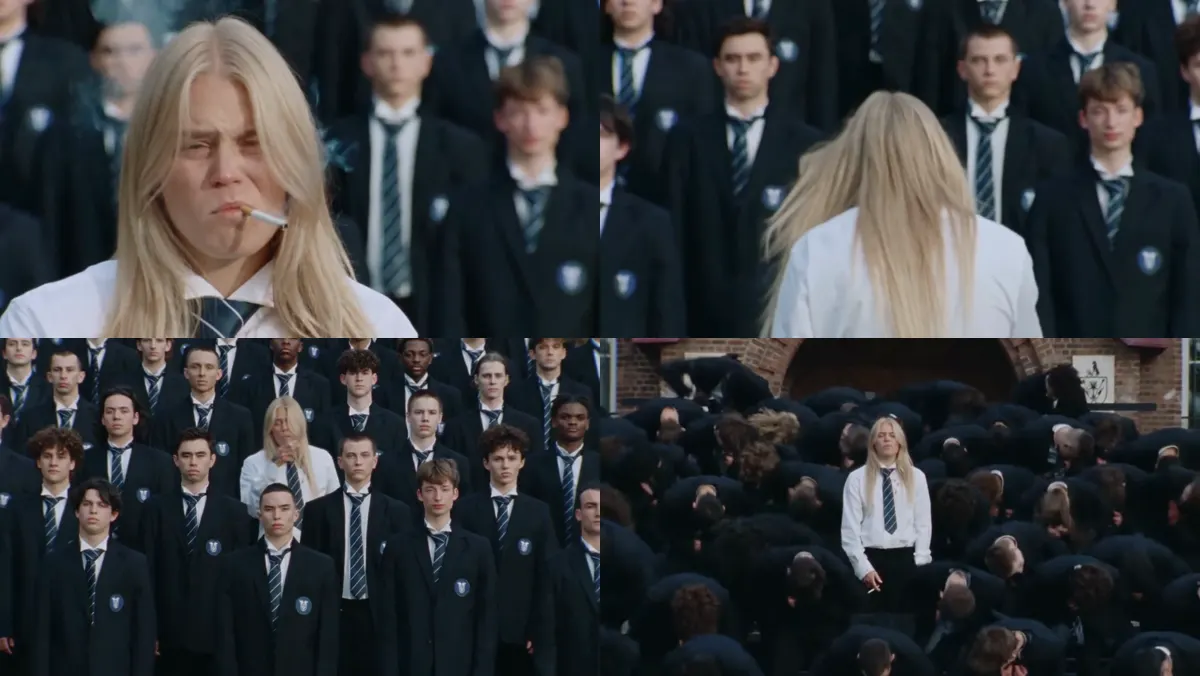
The walk in the middle is what holds the whole clip together. Without it, the eruption has nothing to build from. We learned that the hard way, more on that below.
Why we use the original footage
When we started on the Storm Dance template, our first attempt generated a new crowd that looked about the same. At a glance it was close. In reality it was a different video: a different building, a crowd of near-identical faces, and it was hard to even tell who was supposed to be replaced.
People join a trend for the original clip. If the result doesn't look like it, the template is pointless. So the final version edits the STORM II footage itself and changes only the lead. The crowd, the red-brick school, every camera move and the timing of every movement stay exactly as they are.
Two more things went wrong along the way:
We cut the most important part. One version trimmed the walk into the crowd to make the clip shorter, and it looked wrong immediately. The template now keeps the full 26 seconds, so not a single frame is cut.
The original lead's tattoos came along. The man in the video has tattoos on his neck and hands, and early versions copied them onto whoever replaced him. That no longer happens.
Picking your photo and outfit
You only need one photo, and it decides whether the result looks like you. Use a sharp, well-lit photo of one person with the face turned roughly toward the camera. Adults only, and only photos of people who are happy to star in it.
There are two outfit options. "Original look" puts you in the white shirt and loosened striped tie from the video, which is closest to the original. "My own outfit" keeps whatever you're wearing in your photo. If you want to be spotted instantly in a sea of dark blazers, wear something bright.
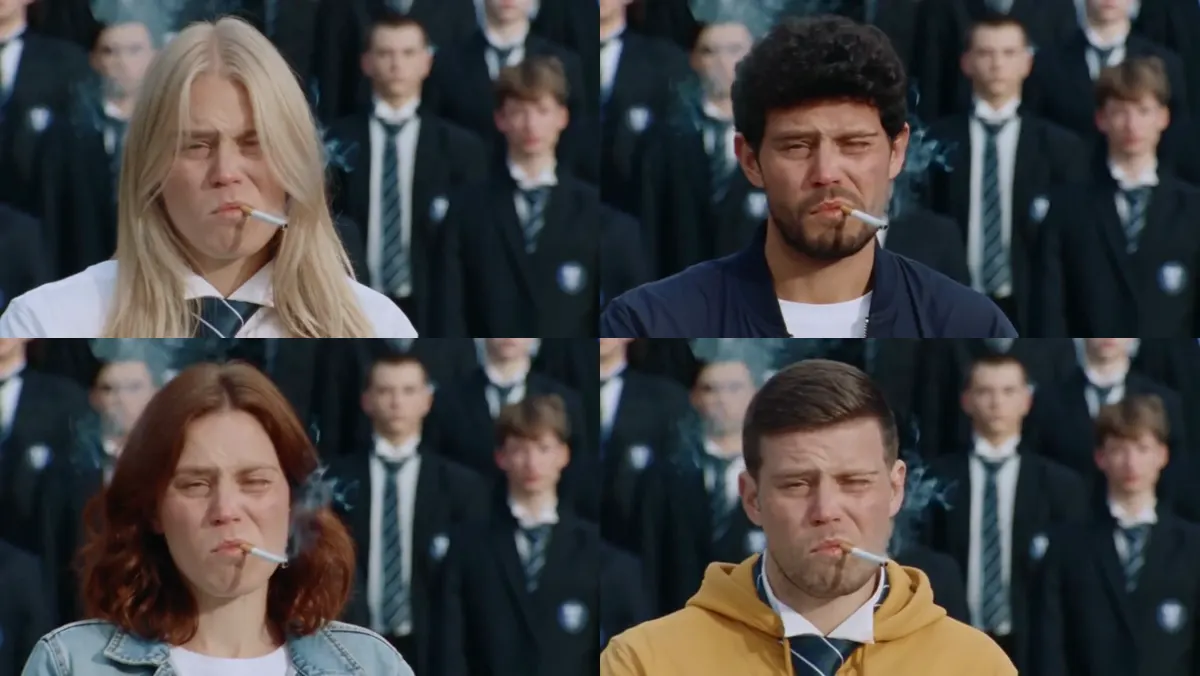
Those four are the template's example clips. Two things stood out once we ran them:
- The navy jacket is too close to the dark school uniforms, so the lead gets lost in the wide shots. The yellow hoodie and the denim jacket stand out far better.
- For the yellow hoodie clip we actually picked "Original look". The hoodie stayed, with a tie added underneath. That happens now and then when the outfit in the photo is very loud. If you want the classic white shirt, use a photo with plainer clothes or just generate again.
How to do the Storm trend on ZOOOP
- Open the Storm Dance template and upload one photo of yourself.
- Pick the outfit: the white shirt and tie from the video, or your own clothes.
- Pick a resolution and generate. 480p is the default, 720p is available, and higher resolution costs more.
Each clip we ran took about six to seven minutes. You get a 26-second landscape 16:9 video, ready to post to any short-video app.
The second the crowd goes off
The shot that sells the whole clip comes around 21 seconds in: a few hundred people bow at once, you're standing in the middle, and a moment later they all throw their heads back.

It's also the best frame to grab as your cover image.
More to make after the Storm trend
For another everyone-else-moves moment, try Hotel Lobby, or dance along with the Gang Gang dance. To restyle a clip you shot yourself, use Edit Video. To start from nothing, head to the AI video generator. There are more one-click ideas in the template library.
The Storm trend is still everywhere right now. Pick a photo and make a STORM II clip where you're the one who doesn't move.