Birds of a Feather Chair Spin Video: Make the Overhead Shot from One Photo
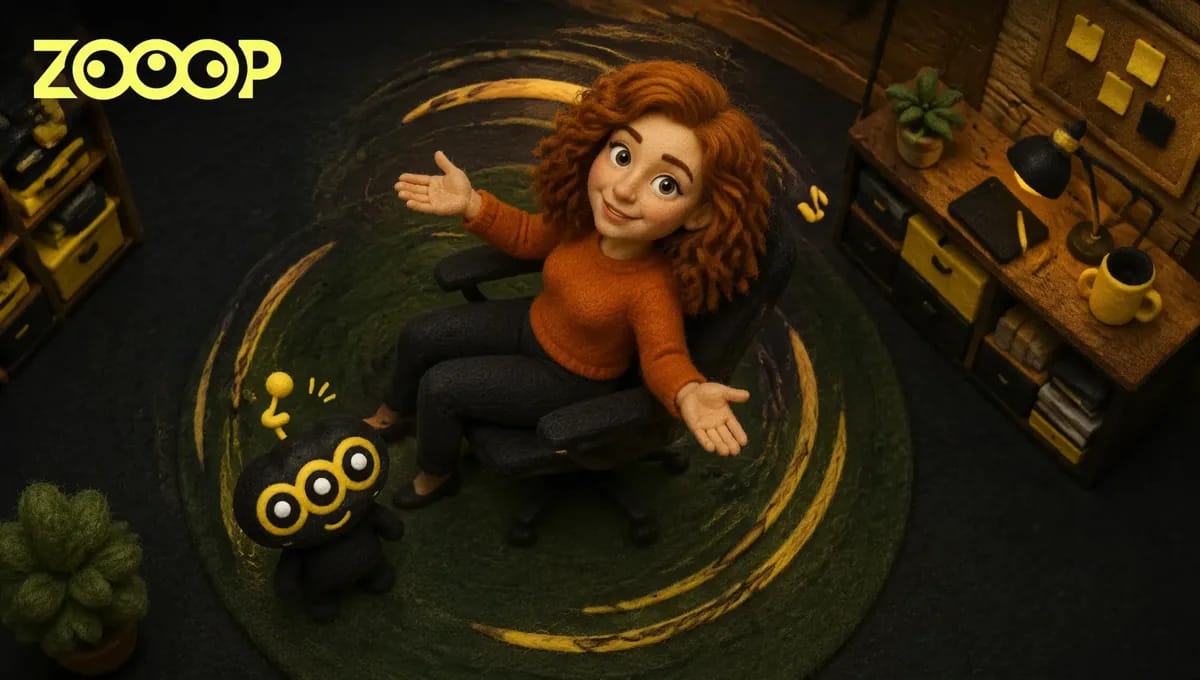
Upload one adult portrait to make a 14-second Birds of a Feather chair spin video with ZOOOP. See the tested example, photo tips, and what changed in the hair and clothing.
Someone leans back in an office chair and looks straight up at the camera. The chair turns, the green carpet rotates behind them, and their face stays at the center of the scene. The appeal of the Birds of a Feather shot comes from that combination of an overhead viewpoint and an expressive performance. The movement is simple enough to follow, while the face does most of the work.
To put yourself in a chair spin video, open ZOOOP’s Birds of a Feather template. Upload one clear photo of an adult and choose a resolution. The result is a landscape clip of about 14 seconds, without having to spin in a real chair or set up a camera above your head.
What the chair spin video looks like
Our example uses a portrait of a woman with curly hair. In the finished clip, she wears an orange top, opens her arms, leans back in an office chair, and looks up toward the camera. The dark green carpet remains in the background. As the view rotates, attention stays around her face and shoulders.
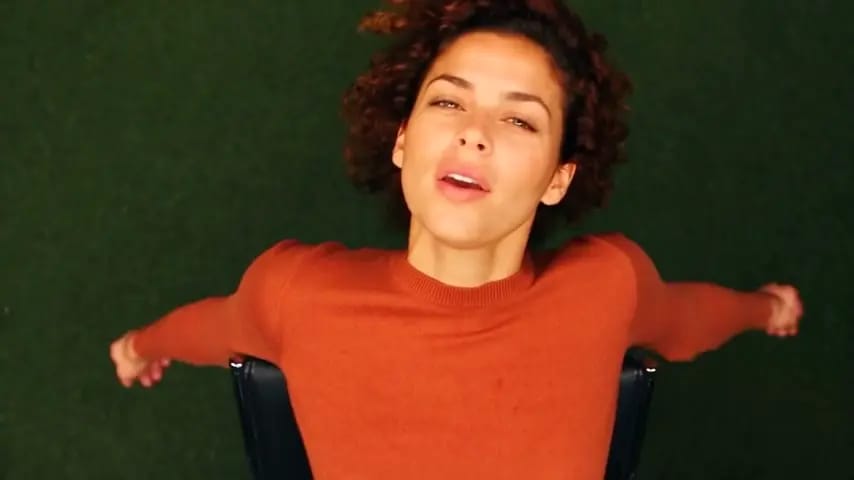
The chair spin video shown on the page is 14 seconds long and reaches the overhead performance soon after it starts. The template uses a scene segment of the same length, although generated timing can vary slightly.
It works well as a playful personal clip. An office chair and a green carpet give the movement enough context. With fewer background distractions, the person’s eye contact, mouth movements, and clothing color are easier to notice.
Choose a clear face and a complete hair outline
Start with a photo containing just one adult. A front-facing portrait or a slight turn can work; keep the eyes, nose, and chin easy to see. Even lighting and an unobstructed face give a more useful reference than sunglasses, a lowered head, or hair covering half the face.
For a chair spin video that carries some of your own outfit into the scene, choose a photo showing the shoulders and top. The orange clothing in our example stands out against the green background. Still, the photo is a guide to appearance: collars, cuffs, and other details can change, so this effect is better suited to a personal performance than a precise clothing demonstration.
Hair deserves some attention too. Our example kept the color and curly texture, but the hair became shorter than it was in the portrait. Long curls, a full hairstyle, or elaborate accessories can take on a different shape from an overhead angle. A photo showing the whole outline of the head gives a clearer reference for those features.
Upload your photo and generate your chair spin video
Open the template and use the photo upload area on the left. Each generation requires 1 photo, and the person in that upload becomes the main character. The woman shown in the example demonstrates the effect; you can use your own portrait for your generation.
Next, choose 480p or 720p. The generation button displays the current credit requirement, so you can choose a resolution for your intended use. Generate the clip, then download the finished video. The landscape framing keeps the person, chair, and surrounding rotation space together.
You do not need a separate office photo or a video of yourself turning around. The template supplies the scene and movement. Bring a photo with a clear view of the person. To try other settings afterward, browse the AI template library.
What this tested example shows
The animation below comes from the same chair spin video. It shows how the person and background move together. A still frame makes facial appearance and clothing easier to see; a moving excerpt gives a better sense of the rotating overhead view.
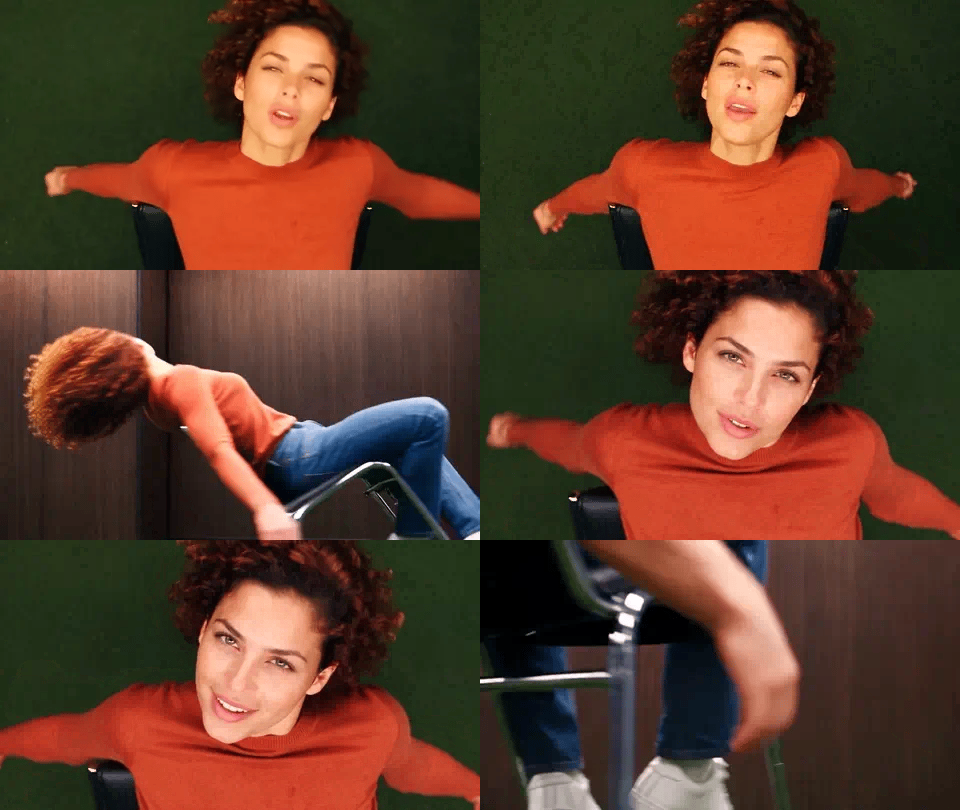
In this example, the orange top contrasts clearly with the green carpet, and the face remains visible when she looks up. The shorter hairstyle is a useful reminder that a natural-looking result will not reproduce every detail of a portrait. Prioritize the face and overall appearance over expecting a particular accessory or strand of hair to stay identical.
To make a chair spin video starring you, start with one clear portrait. Open the template page, upload your photo, generate, and download the overhead clip.
Frequently asked questions
How many photos do I upload?
Upload 1 clear photo of an adult. Use a single-person image with an unobstructed face, and show the hair outline and shoulders where possible.
Do I need to be sitting in an office chair in the photo?
No. A normal portrait is enough. The template supplies the chair scene and movement, and your photo does not need an office background.
How long is the video, and is it landscape or portrait?
The current reference segment is 14 seconds long and uses landscape framing. Generated timing may vary slightly; the woman’s example on the page is 14 seconds long.
Will my hair and clothing stay exactly the same?
Individual details can change. The orange top was retained in our example, while the curly hairstyle became shorter. A clear photo helps provide recognizable features.