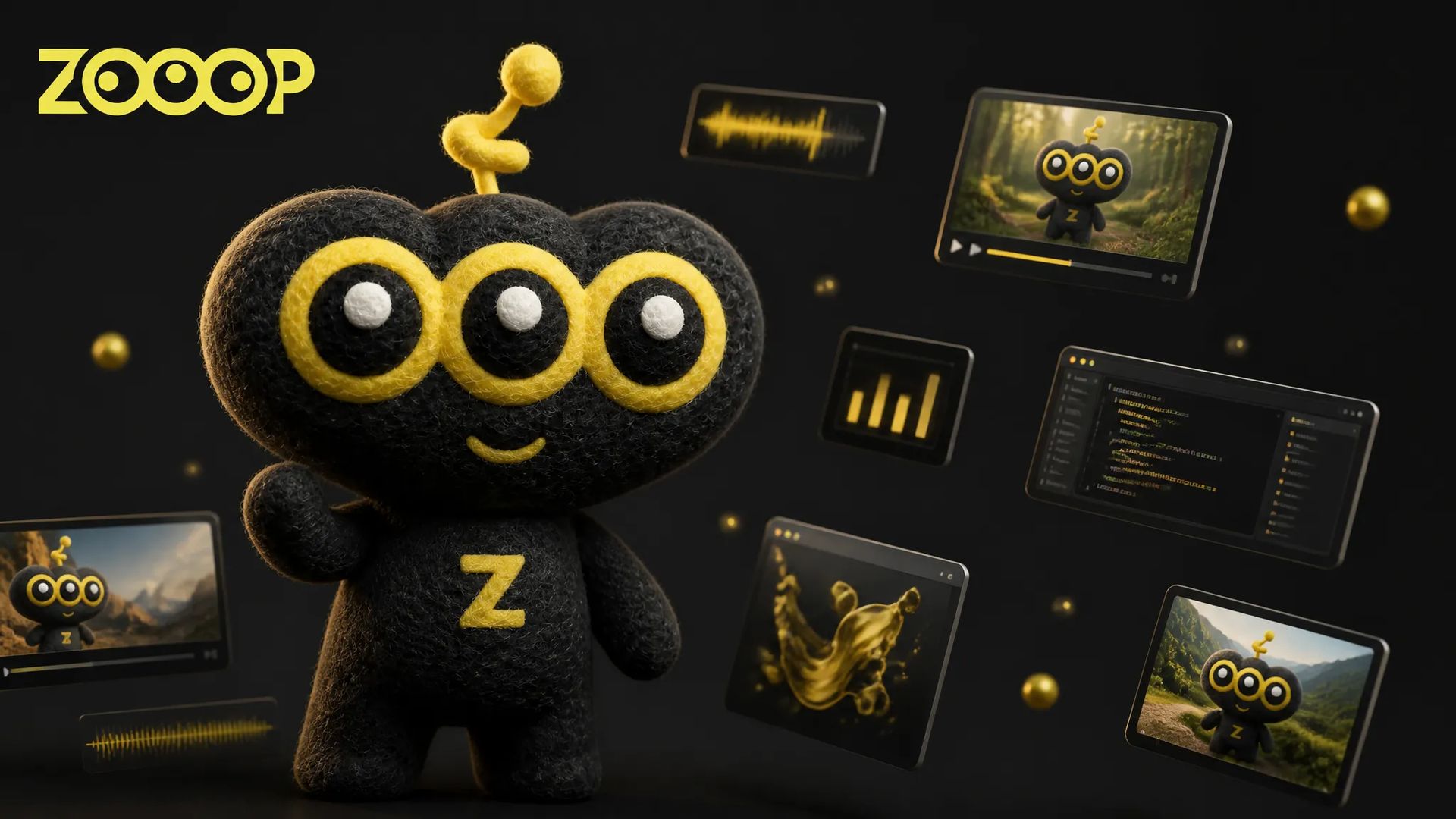
Let Your AI Agent Generate Images, Videos and Voice — ZOOOP Skill Quickstart
You're writing a doc and realize this section needs an image.
The old routine: open a browser, pick an AI image site, log in, paste your prompt, tweak settings, wait, download, drag the file back into your project. Eight or nine context switches later, you've probably been interrupted by a notification or two along the way.
The ZOOOP skill collapses that whole loop into the AI agent you're already chatting with. Tell Claude Code, Cursor, Codex, Gemini CLI or any other AI agent something like "add a cover image to this section, horizontal, dark background, a small floating mascot," and the agent calls ZOOOP for you. The image lands back in the chat in under a minute.
Why hand AI generation off to an AI agent
AI agents have already taken over most of the writing-code and writing-copy parts of creative work. But the moment you need an image, a video clip, or a voice line, you're back in the browser. That context switch is one of the most broken pieces of the current AI creation workflow.
The ZOOOP skill takes a simple stance: since the AI agent is already sitting next to you, let it handle generation too. No new tool to learn, no window to switch to. You describe what you want, and the agent uses your ZOOOP credit balance to make it happen.
What the ZOOOP skill lets your AI agent do
Once installed, your AI agent gains access to almost every generation capability ZOOOP offers:
- AI image generator: text-to-image, reference-image style transfer, character-consistent batches
- AI image editor: erase, replace, fill, outpaint
- AI video generator: text-to-video, backed by Veo 3.1, Kling V3, Seedance 2, Nanobanana……
- First & last frame to video: animate a still
- lip sync: drive a portrait with a voice track
- text to speech and voice cloning: TTS, or clone a specific voice
- AI music and sound effects: background scores and ambience
Put differently: nearly every step of your content workflow that needs AI generation can be done in one sentence to the AI agent.
Install once, works across every major AI agent
The ZOOOP skill isn't bound to any single AI agent. Claude Code, Codex, Cursor, Gemini CLI, plus other clients that read the skill / MCP standard — install it once and reuse across all of them.
The flow looks like this:
-
Create an API key on zooop.ai, bind it to a project, and set a daily credit cap while you're at it.
-
In your own terminal, write the key into the environment variable
ZOOOP_API_KEY(do not paste it into the agent chat). -
Install the skill. The easiest path is to drop the GitHub link github.com/zooopai/skill-zooop to your AI agent and tell it to read the README and install. Modern agents understand this kind of "go install this repo" instruction — you don't need to remember exact commands.
-
If you'd rather run the command yourself, the cross-agent option is:
npx skills add zooopai/skill-zooopClaude Code, Cursor, Codex, Gemini CLI, GitHub Copilot, Windsurf and dozens of other clients all recognize it. To target specific agents, add
-a:npx skills add zooopai/skill-zooop -a claude-code -a cursor -
Restart your agent so it picks up the new environment variable.
Whole setup takes under five minutes. And the AI agent doesn't need to skim API docs — the skill ships with "which generation type for which scenario," "how to fill the params," "what to do when it errors out" already baked in.
First run: ask your AI agent for an image
The easiest entry point is to just talk to your agent:
Generate a blog cover image for me — horizontal, dark color, with a small orange mascot floating in the middle.
The agent picks the model, fills the parameters, calls ZOOOP, waits for the result. The image lands in your project folder or shows up in chat. Don't like it? Say "more empty space on the right" and it iterates — no forms, no re-doing the parameter dance.
Compared to opening the AI image generator page directly, the win is context: your AI agent still remembers what section you were writing, what tone the post takes, what kind of imagery would fit.
Going further: video + a voice line
Video and voice work the same way. A common scenario: making a quick product demo clip.
Use the image we just made as the first frame, generate a 5-second video with a slow push-in. Then read this Chinese line in a warm female voice.
The agent splits it into two calls: a video model (Veo 3.1, Kling V3, Seedance 2 — picks based on the instruction), then a voice model (ElevenLabs, Suno, etc) for the line. Both files end up somewhere you can grab.
You can push this further — six shots, the same character lip-synced across all of them, a single shared background track — the same playbook that powers the generative canvas on the web, only triggered from your chat box.
Generated content is always one click away on ZOOOP.ai
This piece gets overlooked, but it's quietly the most reassuring part of the ZOOOP skill: every image, video and audio file generated through your API key auto-syncs into the ZOOOP project the key is bound to.
Which means:
- AI agent cleaned up its temp files mid-run? Open the project history page on zooop.ai and re-download anything.
- Want to turn last week's batch of agent-generated shots into a storyboard? Drag them into the generative canvas in the browser and keep going.
- Switching to another laptop or phone? Sign in to ZOOOP and you'll see every asset the agent has produced under that project.
- Want to see how many credits you've burned, or which model you lean on most? The project history and account usage pages both show it.
In short: the AI agent is the entry point, ZOOOP.ai is the archive. Both views stay in sync, so you can swap devices, swap agents, swap collaboration modes without ever losing the work.
The guardrails that aren't obvious but matter
- The token never appears in chat. The ZOOOP skill reads the key from your environment variable. The agent doesn't see it and doesn't need to. Your token stays out of transcripts, screenshots and training corpora.
- Daily credit cap. You set the daily ceiling when you create the key. Even if the key leaks, damage is bounded to that day. One click to revoke and reissue.
- Project isolation. Each key can only write into the project it's bound to. Use different keys for different workflows; they never cross.
None of these were tacked on later — they were how the skill was designed from day one. Letting an AI agent create on your behalf is fine; letting it quietly trash your account is not.
Who this is for / who it isn't
A good fit: developers who live in the terminal and IDE, engineers wiring AI generation into automation scripts, creators producing high-volume content (blog covers, thumbnails, demo videos) where batching matters, and anyone who's already let an AI agent take over their repetitive work.
Less of a fit: visual creators who want to drag and tweak every frame by hand — opening ZOOOP.ai directly is more direct in that case. Or anyone who doesn't touch AI agents at all — installing the ZOOOP skill would be overkill; the web app is fine on its own.
If you're already writing things inside Claude Code, Cursor, Codex or any other AI agent, spending five minutes on the ZOOOP skill is hard to regret. And whatever you generate quietly waits for you on ZOOOP.ai — that part was the plan from the start.