Saw an Image You Want to Match? Turn It Into a Prompt in One Click — ZOOOP's Style Analyzer
Everyone who's spent time with an AI image generator has hit this moment: you're scrolling Pinterest or a friend's portfolio, you find a shot whose light, palette and mood are exactly what you want, and ten minutes later you're still staring at an empty prompt box, unable to put any of it into words.
ZOOOP just shipped a small fix for that — the style analyzer: upload one reference image, wait a few seconds, get a clean English prompt back. Drop it straight into the input, or rewrite a couple of phrases and go.
What the Style Analyzer Actually Does
One sentence: it translates a picture into a prompt the model can read.
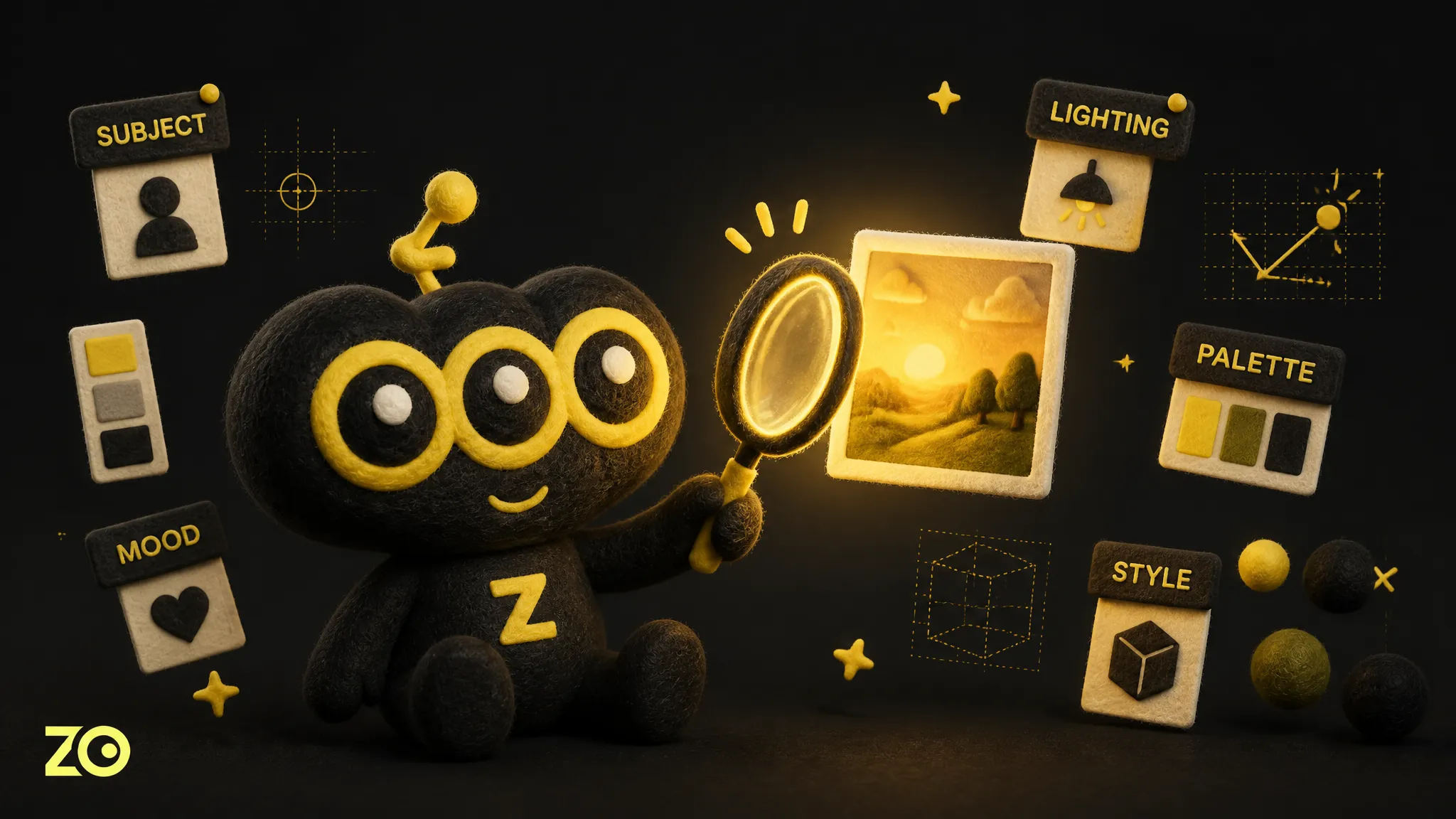
It pulls the image apart along a few axes:
- Subject — what's in the frame: people, objects, the scene itself
- Composition — angle, distance, framing, layout
- Style — photography, illustration, oil, 3D render, film stock, and so on
- Lighting — hard or soft, front or back, warm or cool
- Palette — dominant tones, color relationships, saturation
- Mood — emotional register: calm, tense, warm, lonely
Then it stitches everything into a single English paragraph, capped around 120 words. Why English — image models today are still tuned far more tightly to English prompts; even good Chinese gets diluted in the implicit translation step. Going straight to the language the model speaks makes outputs much more stable.
What the Output Actually Looks Like
The axes above stay pretty abstract until you see them on a real image. Imagine you uploaded a photo of "dusk in Tokyo, a lone figure with a black umbrella walking across a rain-slicked street with neon reflections in the puddles." The structured result you get back looks roughly like this:
- Subject — a lone figure with a black umbrella walking down a rain-slicked street
- Composition — low-angle shot, centered subject, leading lines from neon signs
- Style — cinematic photography, subtle film grain, anamorphic flare
- Lighting — rim lighting from neon, soft ambient fill, cool dominant with warm accents
- Palette — deep teal and magenta, warm amber highlights from puddles
- Mood — melancholic, contemplative, urban solitude
- Camera — 35mm anamorphic lens, shallow depth of field
Underneath those, there's an Overall Description — the same axes woven into one continuous English prompt. That paragraph is what actually drops into the generator's input box; the broken-out axes above are more like "here's why the prompt says what it says," so you can pick and edit individual pieces.
The payoff of seeing it this way: you can lock one axis at a time. Want to keep the whole composition and mood but swap the lighting for soft dawn light? Change just the Lighting line, swap the matching clause in the Overall Description, and leave everything else alone. Much faster than rewriting from scratch.
Where to Find It
The style analyzer shows up in two places inside ZOOOP:
- At the top of any generator — open an AI image generator or an AI video generator tool, attach a reference image, and a "Describe style" button appears above the prompt input.
- Inside the canvas — the generative canvas has the same button on its prompt bar. Useful in multi-shot workflows: analyze one reference, reuse the same look across ten shots.
Click it, wait a few seconds, the prompt input fills itself in. Submit as-is, or rewrite a phrase before you go. It's a starting point, not the finish line.
When to Reach for It (and When Not To)
Good fits:
- You saw a reference you love but can't articulate why — let the analyzer say it for you.
- You want a consistent look across a series of shots — analyze the first reference, paste the same description into all the rest.
- You've hit a prompt-writing wall and need a different angle to break out of.
- You want to carry the visual language of a photo or painting onto a new subject — say, the mood of a film still applied to your own character scene.
Not the right tool for:
- Pixel-for-pixel replication. The style analyzer is style transfer, not exact copy. If you need to faithfully edit an existing image, use AI image editing.
- Images with a lot of text. The analyzer deliberately doesn't transcribe text in the image — signs, posters, captions all get ignored. That's on purpose, to avoid misreads.
- Real, identifiable people. For privacy reasons it won't name anyone, only describe observable traits like "a woman in her thirties with long straight black hair."
A Few Habits That Pay Off
Writing prompts is a bit like cooking — some people follow the recipe, some adjust to taste. The analyzer hands you the recipe; you decide how literally to follow it.
Edit, don't paste blind. The output is one continuous description. Skim it; if a clause isn't what you want, just cut it. The analyzer might say "at dusk" when you wanted "at dawn" — change that one word.
For combinations, analyze separately. If you want image A's lighting plus image B's composition, run them through the analyzer one at a time and stitch sentences together by hand. More controllable than asking the model to look at both at once.
Don't translate the English back. The model performs best when fed English directly — no need to read every word. Run it through a translator if you want to check the gist, but don't rewrite it into Chinese before submitting.
One Note
The style analyzer costs a small amount of credits per run — light enough to use freely — and refunds automatically if it fails. It runs on the same infrastructure as the rest of AI image generation and AI video generation, so speed and reliability track the main tools.
The honest version of all this: the bottleneck in AI image work usually isn't the model — it's that "what do I actually want" is hard to say out loud. The style analyzer helps with exactly that step. It turns a vague liking into a concrete description, and the model takes it from there.
Next time you scroll past something you'd love to match the feel of, stop trying to put it into words. Drop it into the AI image generator or the generative canvas, hit the button, see what comes back.